المقسم الآلي 2.1 حدد and update a المقسم الآلي user
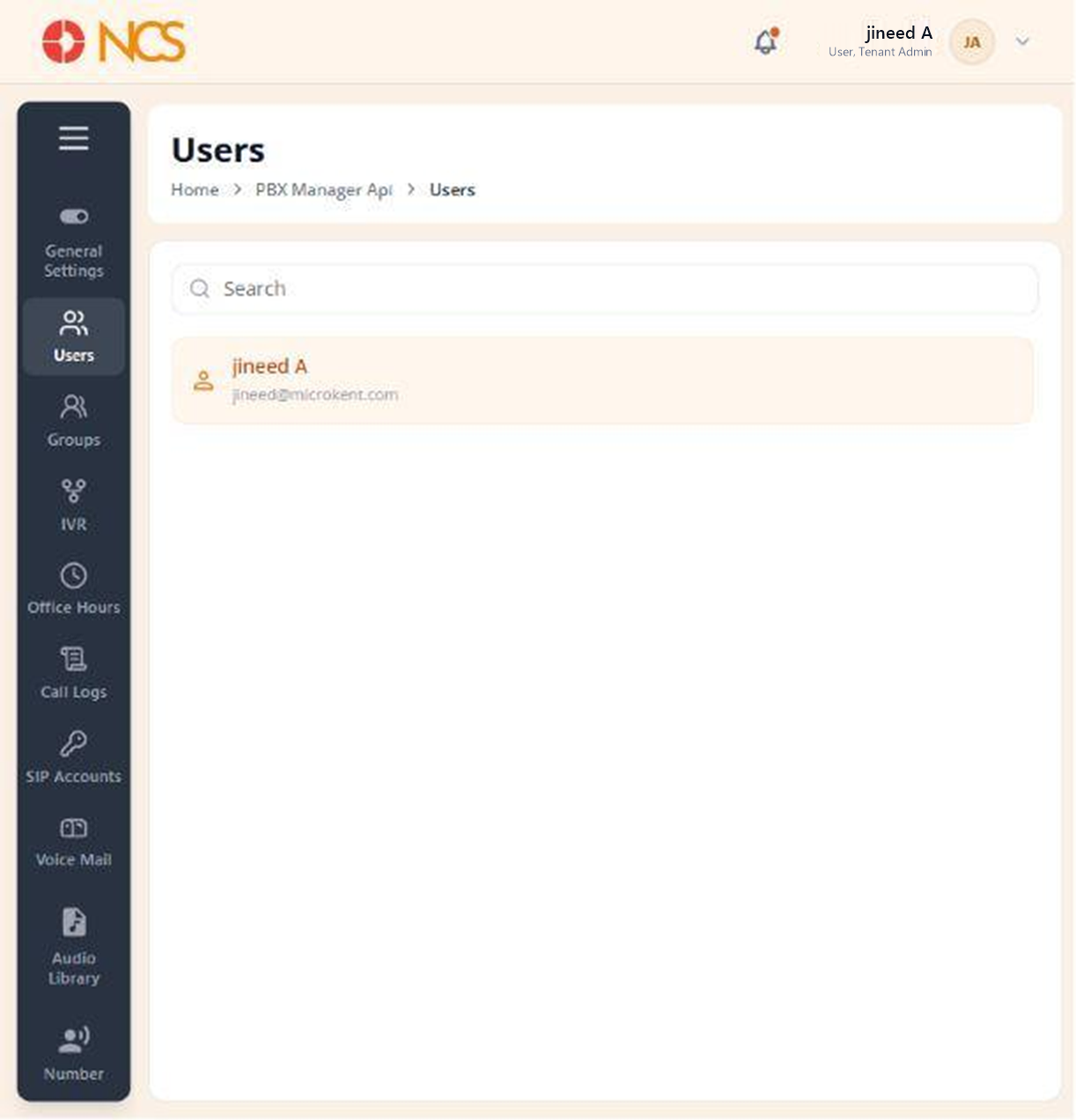
The user list runs down the left of the page, each entry showing the person's name above their email address. The record opens on four tabs: نظرة عامة, الأرقامs & Extensions, Auto Provision and Features.
- Open مدير المقسم الآلي > المستخدمون.
- Use بحث to locate the user, then select them.
- On the نظرة عامة tab, under Basic Information ("Manage user profile and account details."), complete the fields:
| حقل | Notes |
|---|---|
| First الاسم | Marked mandatory with an asterisk. |
| Last الاسم | Not marked mandatory. |
| Marked mandatory with an asterisk. |
- Set الحالة, described on screen as "المستخدم is active and can make/receive calls".
- حدد or clear Add to company directory. This is the working route into the company directory (see المقسم الآلي 1.2).
- Review the assigned حسابات SIP. The table shows الاسم, الحالة and الإجراءات, with a status such as Registered. حدد Add SIP Account to assign another, or Unassign to remove the assignment shown.
- حدد Save, or إلغاء to discard.
الحالة here is telephony, not portal access. Setting a المقسم الآلي user's الحالة so they cannot call is a different action from disabling their tenant user record (see 2.7 in the المستأجر module draft). A user can hold a live portal login and still be unable to place a call, and the two states are set on two different pages. When someone reports that they can sign in but cannot dial, check this الحالة first.
Figure key, المقسم الآلي user نظرة عامة
- مسار التصفح.
- Left navigation, with المستخدمون selected.
- بحث field.
- المستخدم list, with the selected user highlighted.
- نظرة عامة tab, selected.
- الأرقامs & Extensions tab.
- Auto Provision tab.
- Features tab.
- First الاسم field.
- Last الاسم field.
- Email field, disabled.
- الحالة control.
- Add to company directory control.
- حسابات SIP section, with Add SIP Account and Unassign.
- إلغاء button.
- **زر حفظ.