Schedule Meeting
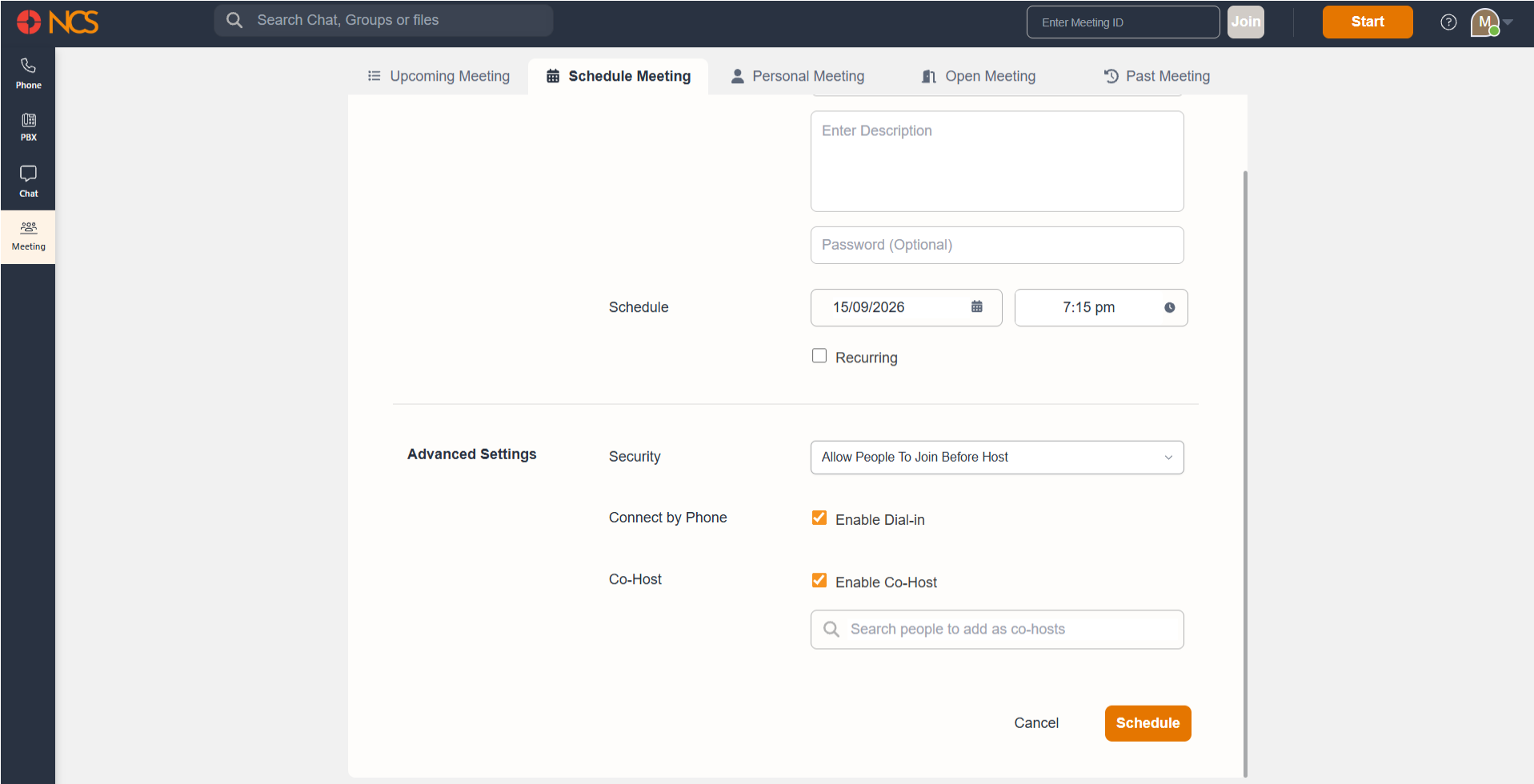
The Schedule Meeting tab serves the purpose of scheduling a meeting for a future date(s). The schedule form contains the following input fields.
- General Give a topic for your meeting
- Password This is optional. You can secure your meeting with a password so that any uninvited guests do not enter the meeting.
- Description This field is also optional. You can give a description for your meeting like the agenda.
- Date Select the date for when you want to schedule the meeting from the calendar drop down. This could only be a present or future date.
- Time Select the time of your meeting from the time dropdown. You can enter only at a future time.
- Recurring Check this field to schedule a repeating meeting for a future time period. Read more on Recurring here (link)
- Security This feature further secures the meeting with three options of admitting people to the meeting.
- Allow people to join before the host allows the meeting to start without the need for the host to start the meeting.
- Allowing people to join after the host makes sure that the meeting doesn't start unless the host starts it. This will keep all the guests in the waiting room until host starts the meeting
- Allowing people to join when the host admits will keep the guests in the waiting room until the host allows/admits the guest either one by one or admits all at once.Once you fill all the fields, click on the Schedule button
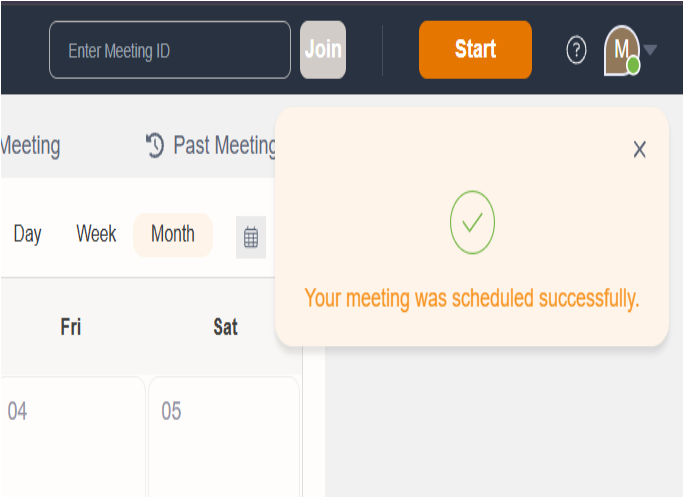
Once you fill all the fields, click on the Schedule button. You will get a success message at the top left of the screen as shown below.
Click on the Cancel button if you want to cancel the scheduling process
Schedule a Recurring Meeting
You can schedule a recurring meeting so that you do not have to individually schedule a recurring meeting with a specific recurring pattern multiple times. In order to schedule a recurring meeting, check the Recurring checkbox on the Schedule Meeting tab.
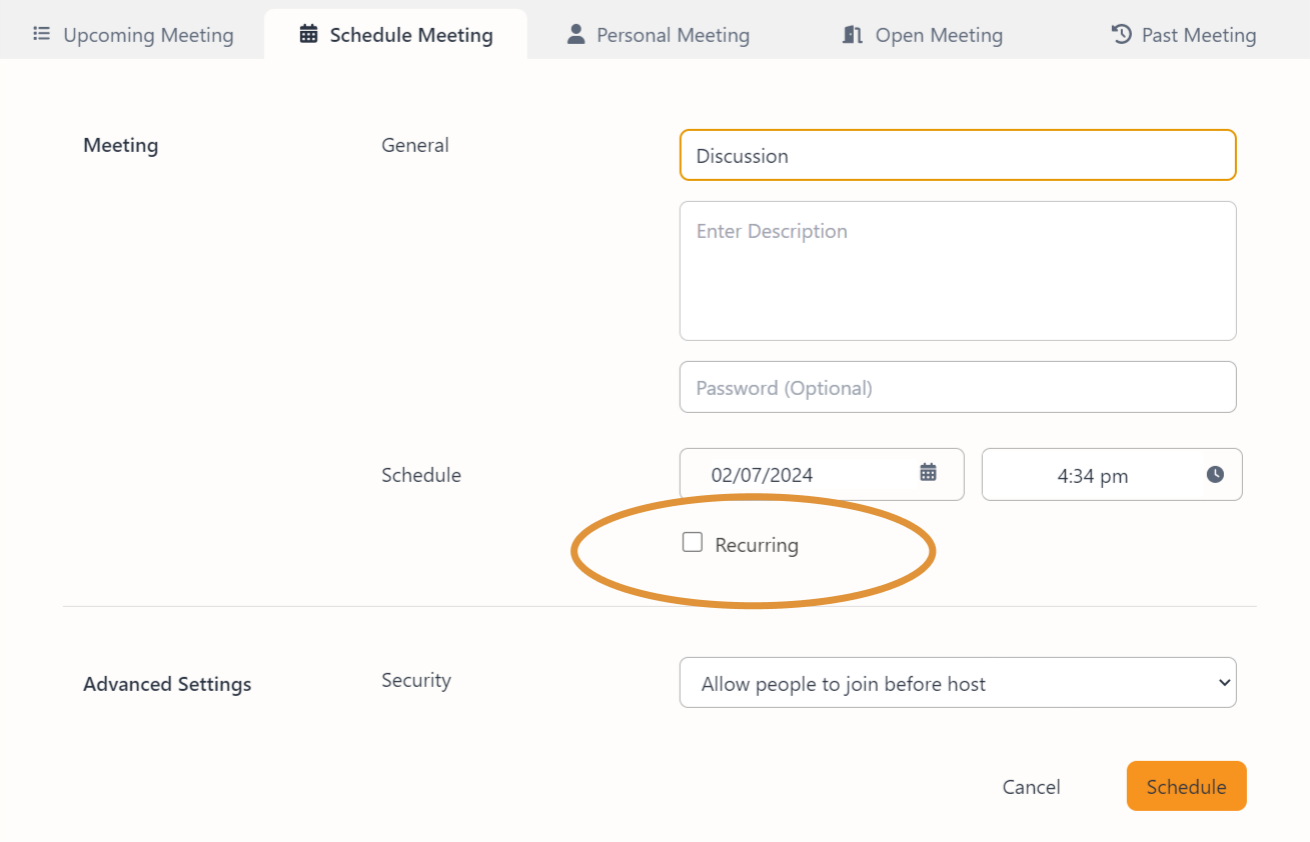
Recurring options will expand upon ticking the checkbox like below.
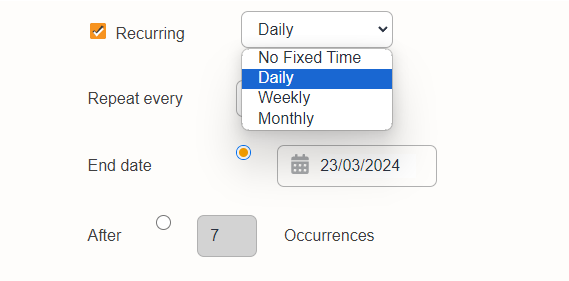
You can select the base pattern of recurrence of your meeting in the Recurring dropdown.
No Fixed Time will take you back to the Schedule Meeting without any recurrences
Daily will schedule meetings on a day basis. You can further custom the repeating by the field that comes up when Daily is selected.
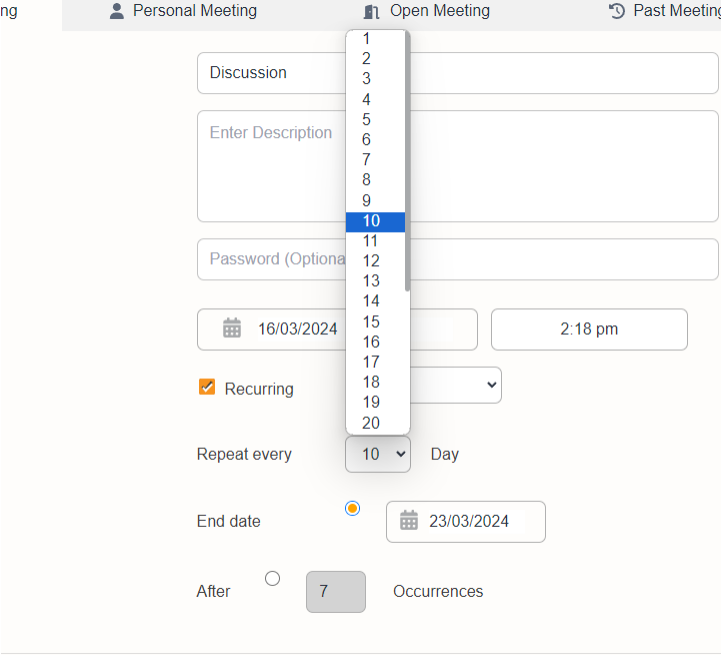
Select a number from the Repeat every dropdown to set how often the meeting repeats. So selecting one (1) will schedule the meeting every day, selecting two (2) will schedule the meeting every alternate day and selecting 10 will schedule the meeting every 10 days.
You can choose how many occurrences of the meeting you want by either selecting the end date or by giving the total expected occurrences. This can be done by selecting between End date and After radio buttons. If you select the End date, select the date when you want the recurring to stop from the calendar. If you select the After, type in the number of occurrences of the meeting you want.
Selecting Weekly from the Recurring dropdown will help you schedule meetings on a weekly basis.
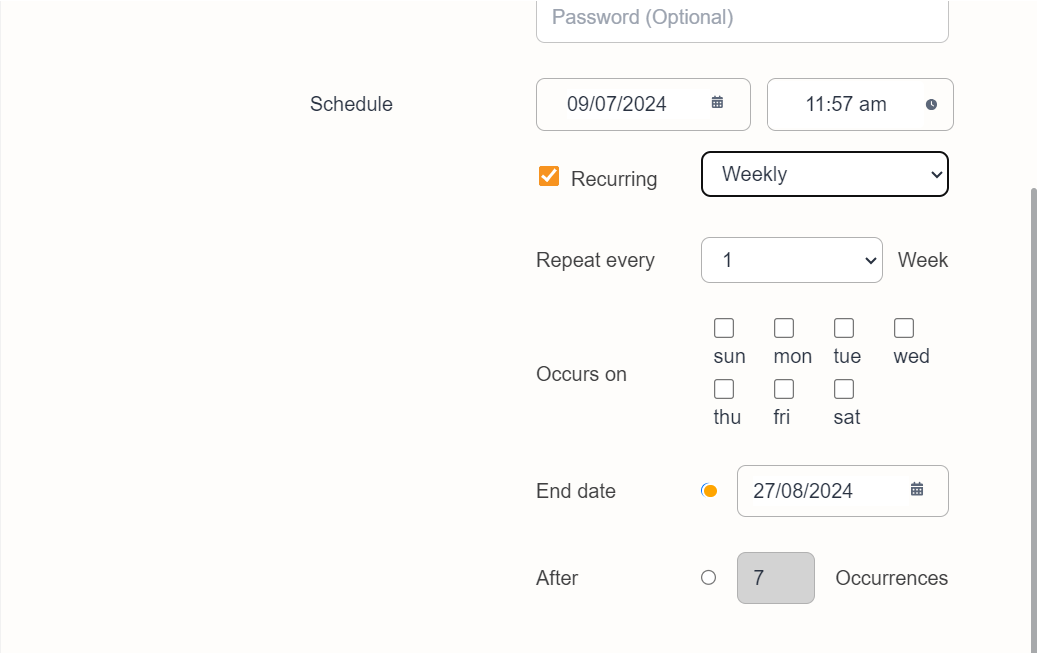
Select a number from the Repeat every dropdown to set how often the meeting repeats weekly. So selecting one (1) will schedule the meeting every week, selecting two (2) will schedule the meeting every alternate week and selecting 10 will schedule the meeting every 10 weeks.
You can further define on which days of the week the meeting occurs. It can be just one day of the week (like every Monday) or could be all week. Check the corresponding checkboxes against each day from the Occurs on field to select the days of the week the meeting recur.
You can choose how many occurrences of the meeting you want by either selecting the end date or by giving the total expected occurrences. This can be done by selecting between End date and After radio buttons. If you select the End date, select the date when you want the recurring to stop from the calendar. If you select the After, type in the number of occurrences of the meeting you want.
Selecting Monthly from the Recurring dropdown will help you schedule meetings on a monthly basis.
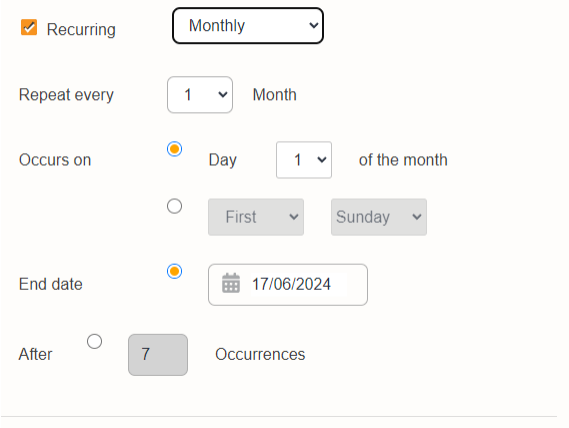
Select a number from the Repeat every dropdown to set how often the meeting repeats monthly. So selecting one (1) will schedule the meeting every month, selecting two (2) will schedule the meeting every alternate month and selecting 10 will schedule the meeting every 10 months.
You can further define on which days of the month the meeting occurs. It can be any day of the month (like every 15th of the month or 21st of the month) or could be a specific day of a specific week (like every first sunday or third monday). These can be set by selecting these respective cases from the radio buttons.
You can choose how many occurrences of the meeting you want by either selecting the end date or by giving the total expected occurrences. This can be done by selecting between End date and After radio buttons. If you select the End date, select the date when you want the recurring to stop from the calendar. If you select the After, type in the number of occurrences of the meeting you want.