Phone
The NCS One Softphone, also known as the Dialer, allows users to make, receive, and manage phone calls directly from the NCS One platform. This feature integrates seamlessly with the other communication tools provided by NCS One, ensuring efficient and effective communication.
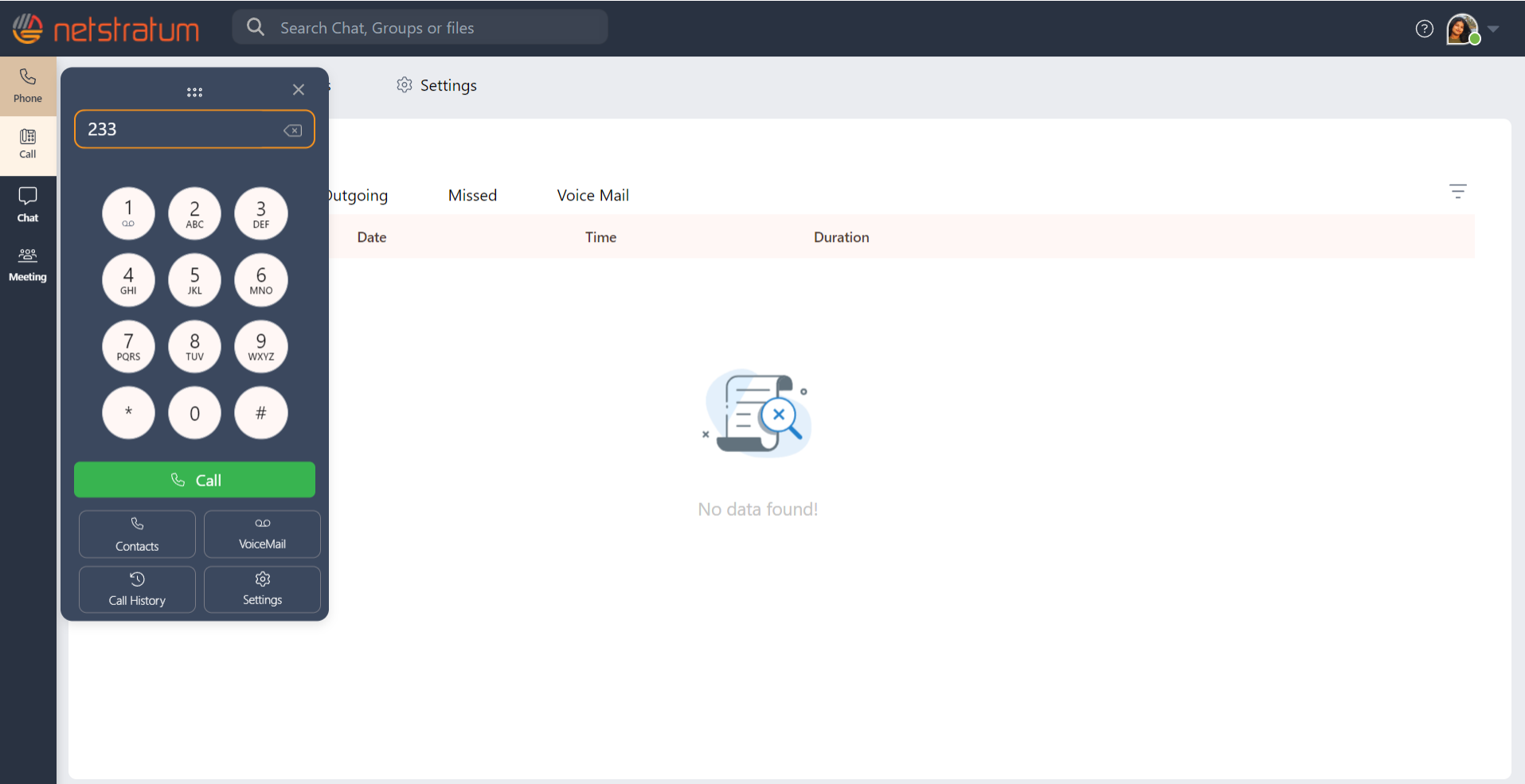
On the left sidebar, click on the Phone icon to open the softphone. In the dial pad section, use your mouse or keyboard to enter the phone number you wish to call. We can move the dialer wherever around the screen. After entering the number, click the Call button at the bottom of the dial pad to initiate the call.
You can access the dialer whenever you want along with other menus open. To close the dialer, click on the dialer/phone button again.
Call using Dialer
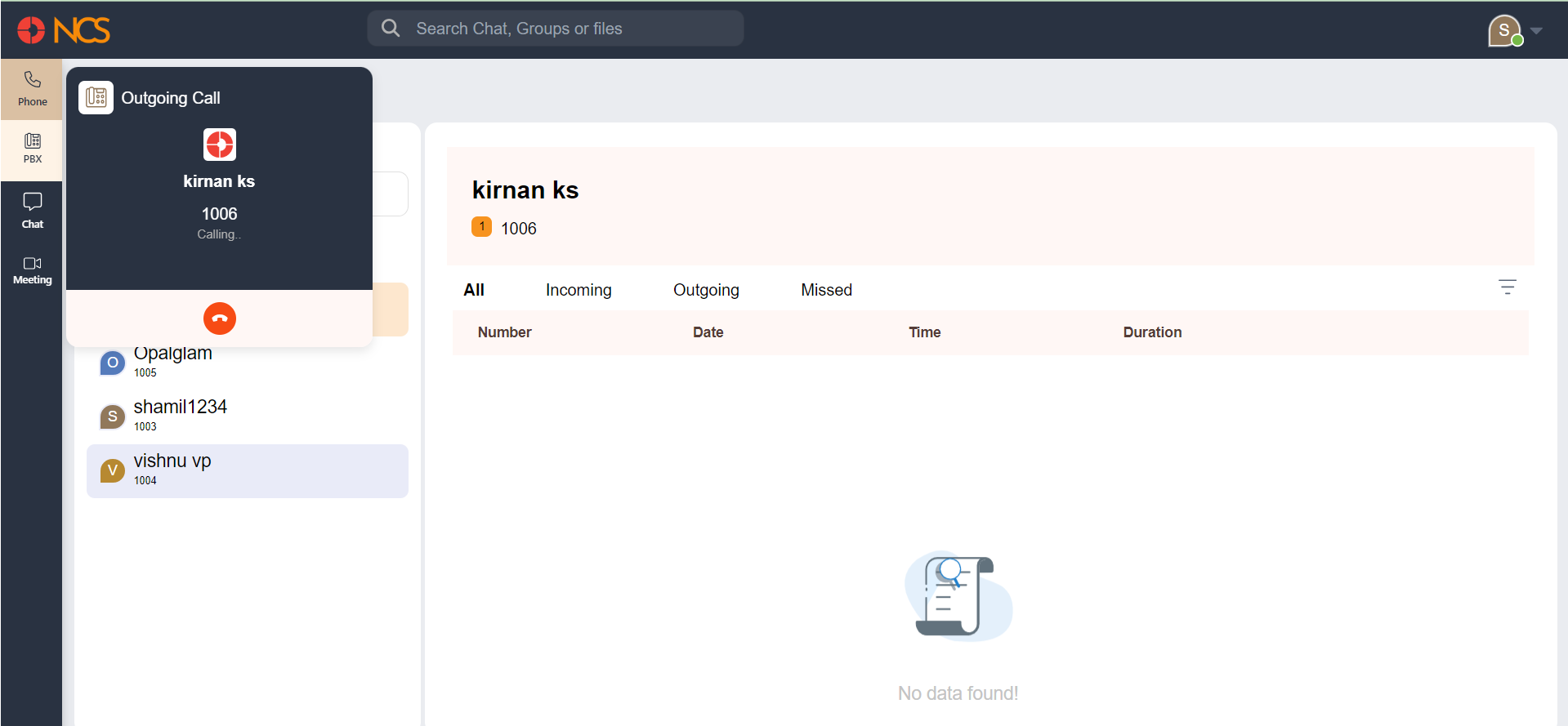
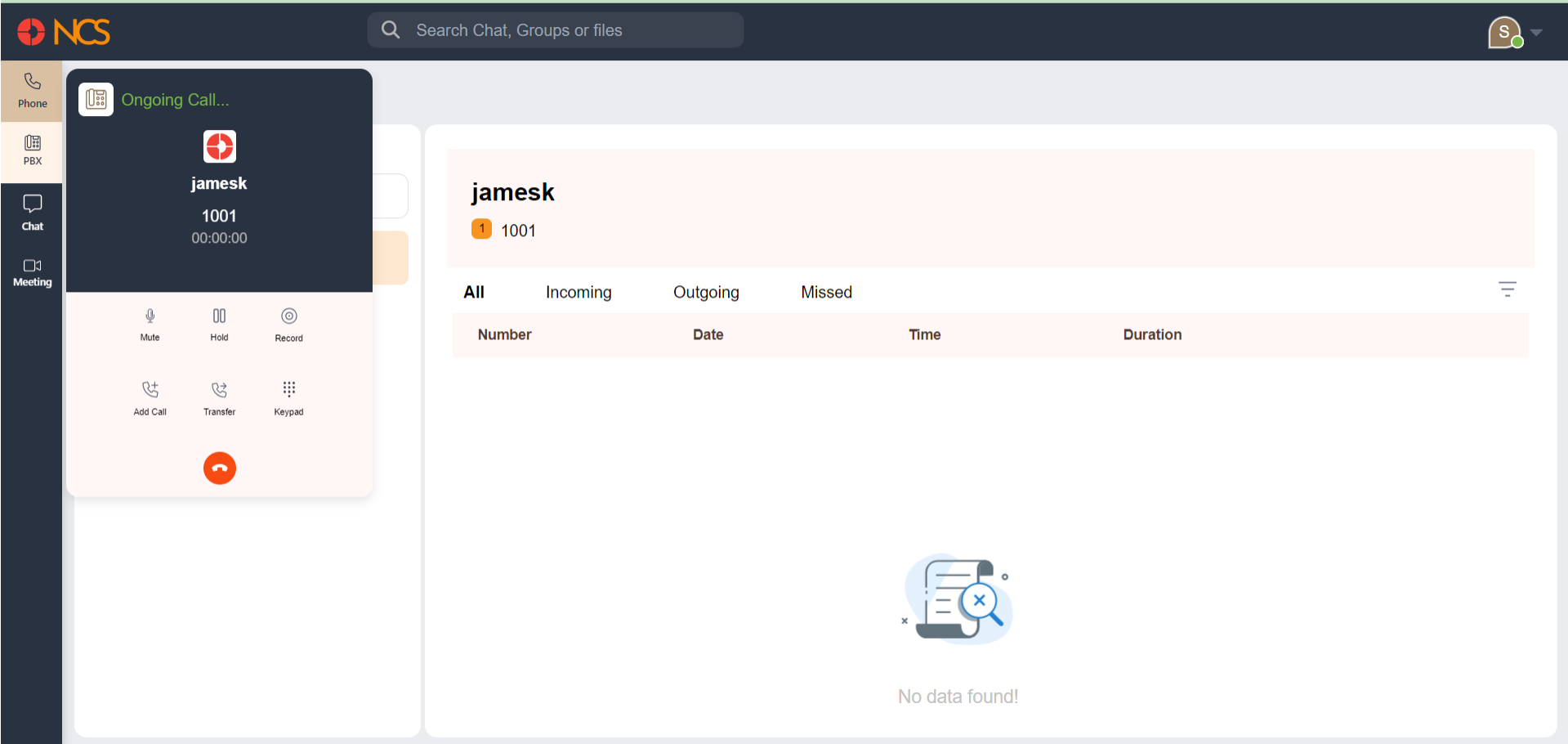
Once the call is initiated, the ongoing call interface will appear on the screen, displaying the call status, contact name and call duration.
Call Management Features
Mute click the Mute button to mute your microphone during the call. Click again to unmute.
Hold click the Hold button to place the call on hold. Click again to resume the call.
Record Click the Record button to start recording the call. Click again to stop recording.
Add Call Click the Add Call button to initiate a new call while keeping the current call on hold. This allows you to handle multiple calls simultaneously.
Transfer Click the Transfer button to transfer the current call to another number or contact. Follow the prompts to complete the transfer.
Keypad Click the Keypad button to bring up the dial pad, which can be used to enter numbers during the call (e.g., for navigating automated systems).
Handling Unavailability
If the person you are calling is unavailable, you can send a recorded voice message. Speak your message clearly and concisely. The voice mail will be shared to the person you tried calling.
Incoming Call