Notification
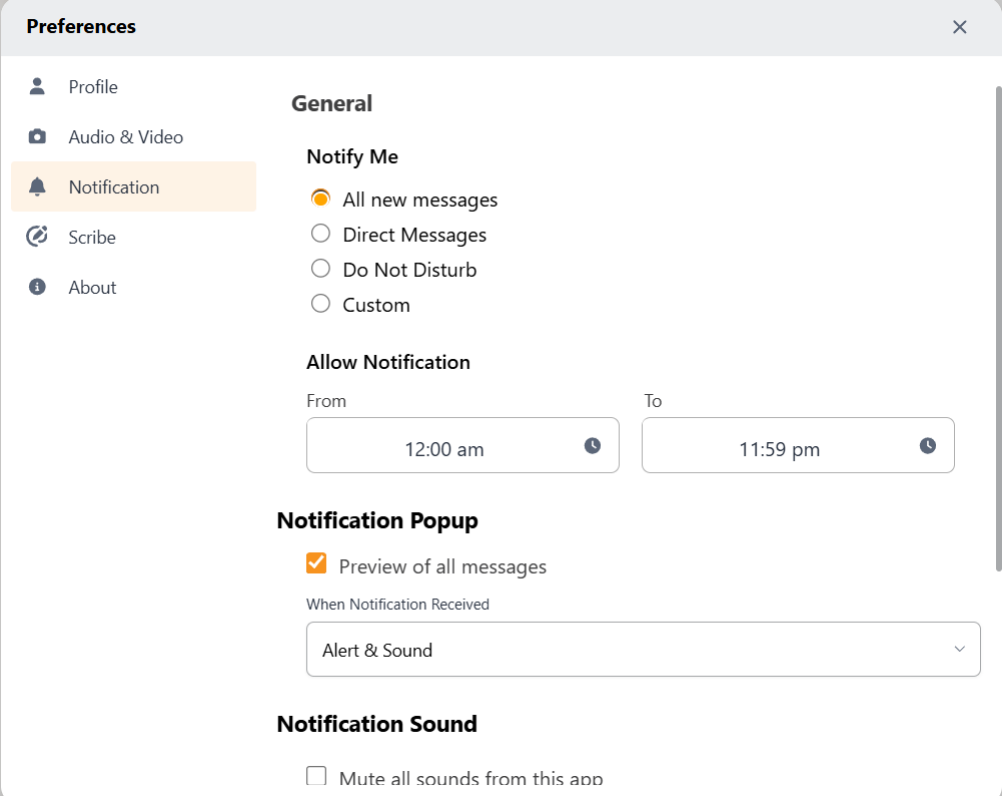
The Notification tab of Settings modal serves the purpose of customizing the app’s updates, alerts, or notifications. The notification bar contains three sections: General, Notification Popup, and Notification Sound.
General
Under the General section, there is a subheading titled Notify me with four radio button options: All New Messages, Direct Messages, Do Not Disturb and Custom.
All New Messages: Selecting this option will ensure you receive notifications for all new messages, including those from direct messages and groups
Direct Messages: Choosing this option means you will receive notifications only for direct messages, excluding those from groups.
Do Not Disturb: Selecting this option will prevent you from receiving any notifications or messages.
Custom: This option allows you to customize your notifications according to your preferences. You can choose which chats to include or exclude from notifications.
Select the Custom radio button to expand the section with a few additional fields - Exclude checkbox, Direct Messages and Groups. . The help note right below will guide you on how this section works.
Allow Notification
You can set the time window in which you receive all notifications from NCS under the Allow Notification section in the Notification tab of Settings. This time will be considered based on your Time Zone already saved in the Profile tab of the Settings. To learn about how to set your Time Zone.
Enter the time from which you want to receive the notification in the From files and the time until you wish to receive the notifications in the To field. So if you want to receive notifications between 09:00 AM and 06:00 PM, then enter From time as 09:00 AM and To time as 06:00 PM.

Notification Popup
The Notification Popup section helps customize the details of the Notifications you receive. Check the Preview of all Messages checkbox to show the details of the message in the notification alert you receive. For example, <Name> sent a message “Hi”. So if you uncheck this field, you only receive the alert with a message like “You have a notification from <Name>”.
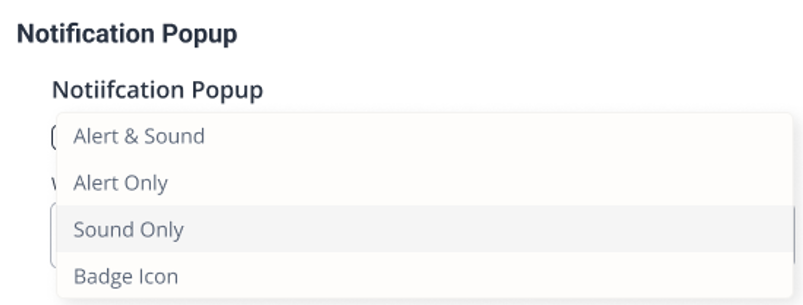
When Notification Received field further customizes how you receive the notification. The drop down list included Alert & Sound, Sound Only, Alert Only, and Badge Icon.
Alert & Sound: You will receive a notification pop up as well as a sound notification if you select this option.
Sound Only: This option delivers only the sound notification without any accompanying popup notification.
Alert Only: You'll exclusively receive popup notification without any accompanying sound alert.
Badge Icon: You will not receive any popup notification or sound notification in this option. Only the badge icon will be mentioned against the conversation in which you have the notification.
Notification Sound
NCS offers a range of Notification Sound custom options. You can select your preferred notification sounds for chats and group sounds. You can also entirely mute all notification sounds from the app by checking the Mute all Sounds from this App check box.
You can select preferred sound for each of these instances from their respective drop down list
- Incoming Chat Sound
- Outgoing Chat Sound
- Incoming Group Chat Sound
- Incoming Call Sound
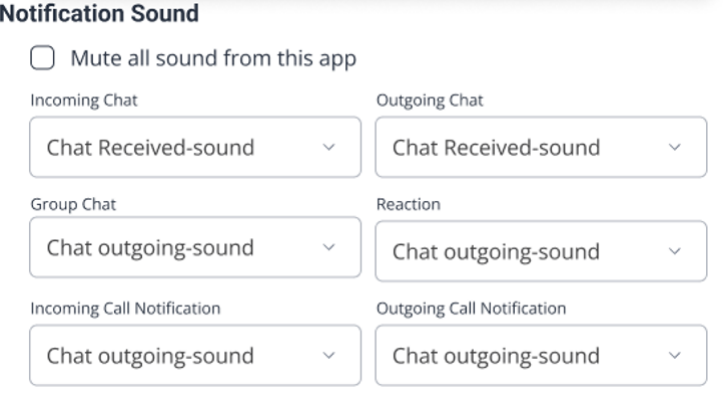
Once you have selected your preferred sounds, click on the Save all Changes button to update your changes