BRD 3.2 Create a contact list
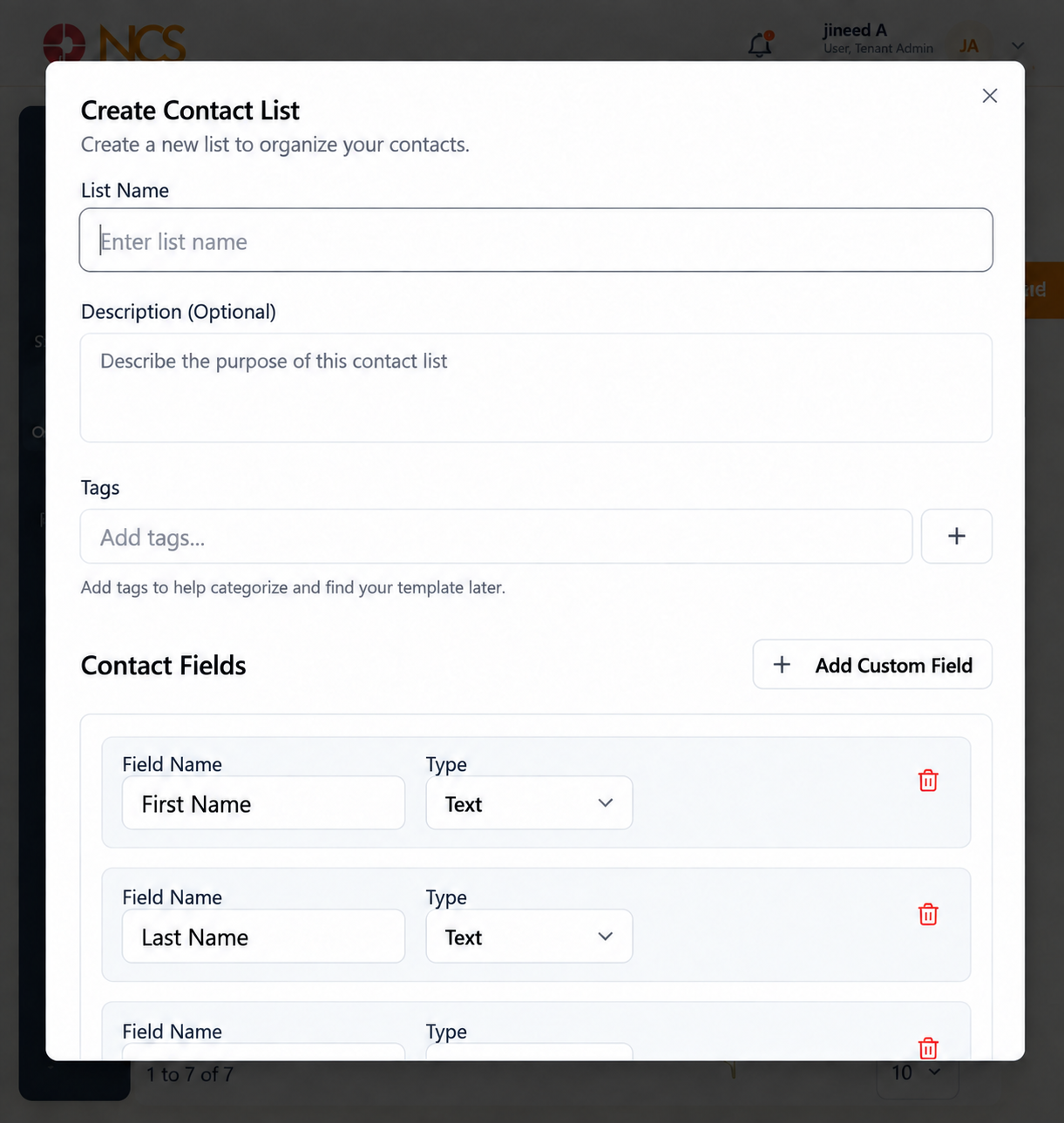
- Open Broadcast > Contact List.
- Select New List.
- Enter the List Name.
- Enter a Description. This is optional, but it is where you record the source of the contacts and the basis on which you may message them.
- Enter Tags and use the add control to apply them.
- Review the five default Contact Fields:
| Field | Type |
|---|---|
| First Name | As shown in the form. |
| Last Name | As shown in the form. |
| As shown in the form. | |
| Phone Number | As shown in the form. |
| Status | As shown in the form. |
- Check each field's Field Name and Type.
- Select Add Custom Field to add another field.
- Select Create List, or Cancel.
Add the custom fields now, before you import. A field added after an import has no values in the existing rows, so any personalisation that uses it renders blank for those contacts. Decide what your templates will need to say and create the fields to carry it before the first import.
The Description is where your consent record lives. Write down where the contacts came from, when, and what they agreed to receive. That sentence is what you will need if a recipient challenges a message, and no other field on this form captures it.
Figure key, Create Contact List
- Form title.
- List Name field.
- Description field.
- Tags field, with its add control.
- Contact Fields section, with First Name, Last Name, Email, Phone Number and Status, each showing its Field Name and Type.
- Add Custom Field control.
- Cancel button.
- Create List button.