PBX 3.1 Review a group and set its details
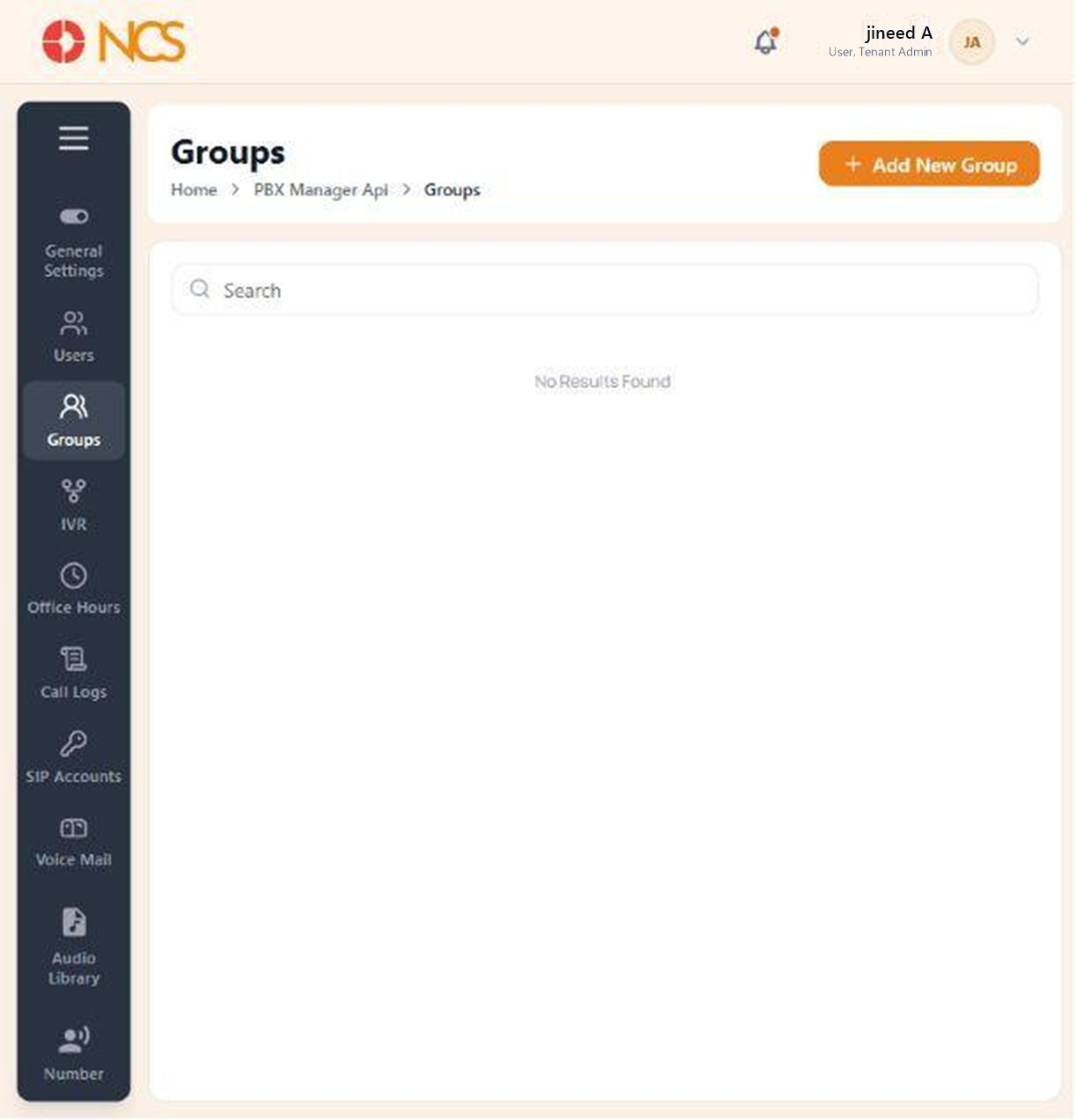
- Open PBX Manager > Groups.
- Use Search to locate an existing group.
- Select a group in the left list to manage it.
- If the list is empty, select Add New Group.
A selected group opens on three tabs: Overview, Members and Numbers & Extensions.
Overview holds two sections:
| Section | Contents |
|---|---|
| Group Information | "Configure the basic settings and details for this group." Contains Group Name, placeholder Enter group name. |
| Features | "Configure additional calling features and group capabilities." Contains Caller ID Prepend. |
Three controls sit at the bottom: Cancel, Save Changes and Delete Group.
Caller ID Prepend is how an agent knows why the phone is ringing. It adds a marker to the caller ID shown on the handset, so a call arriving through the Support group is visibly different from a direct call. Set it on every group whose members also take direct calls.
Figure key, PBX Groups
- Breadcrumb.
- Left navigation, with Groups selected.
- Search field.
- Group list, on the left.
- Add New Group button.
- Overview, Members and Numbers & Extensions tabs.
- Group Name field.
- Caller ID Prepend field.
- Cancel, Save Changes and Delete Group buttons.