PBX 10.1 Review numbers and cell phones
The left-navigation item is named Number, and the page it opens is titled Devices. Both names refer to the same place. The page has two tabs, Numbers and Cell phones.
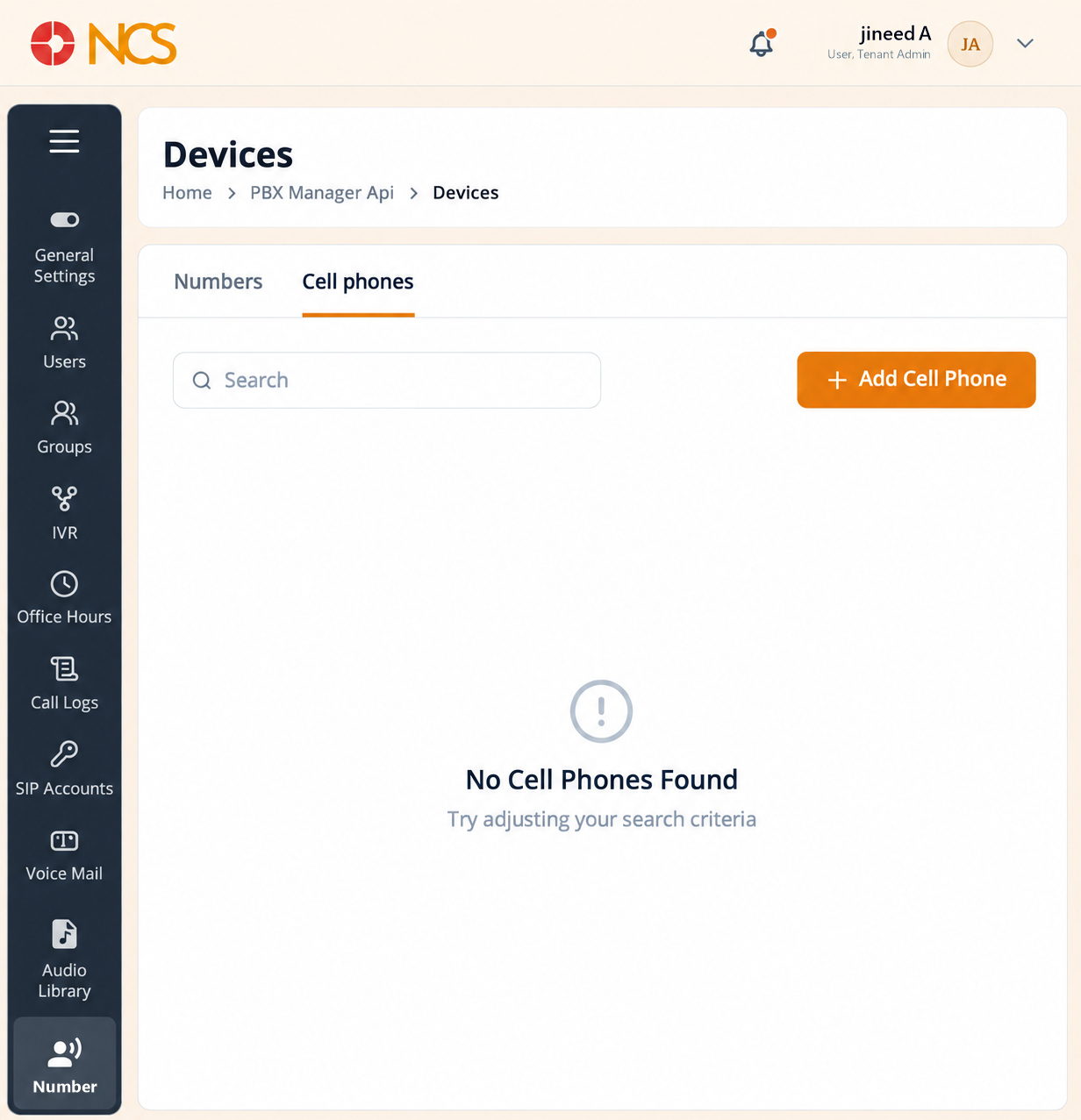
- Open PBX Manager > Number.
- Select Numbers to review the telephone numbers provisioned to your tenant. Use Search numbers to locate one. With none provisioned the tab reads No numbers found, "There are no numbers available in this list."
- Select a number from the list to manage its routing. Until you do, the right pane reads "No number selected, "Select a number from the sidebar to manage routing"".
- Select Cell phones to review the external mobile numbers registered as destinations. Its empty state reads No Cell Phones Found, "Try adjusting your search criteria".
- Select Add Cell Phone to create a mobile destination.
Two-Pane Screen. The Numbers tab is a two-pane screen - The list on the left is only half of it: selecting a number opens its routing configuration on the right. A tenant with no numbers sees both panes empty, which is the expected starting state and not a fault.
Difference Between Numbers and Cell Phones. Numbers and cell phones are different things - A number on the Numbers tab is a platform number your tenant owns and can assign to a user (see PBX 2.2). A cell phone on the Cell phones tab is somebody's external mobile, registered so calls can be sent to it. Read the Numbers tab to see what you have spare before you request more from support@ncsapp.com.
Figure key, Devices
- Breadcrumb.
- Left navigation, with Number selected.
- Page title, Devices.
- Numbers tab.
- Cell phones tab.
- Search field, on the Cell phones tab.
- Add Cell Phone button.
- Record table for the selected tab.