PBX 10.2 Add a cell phone
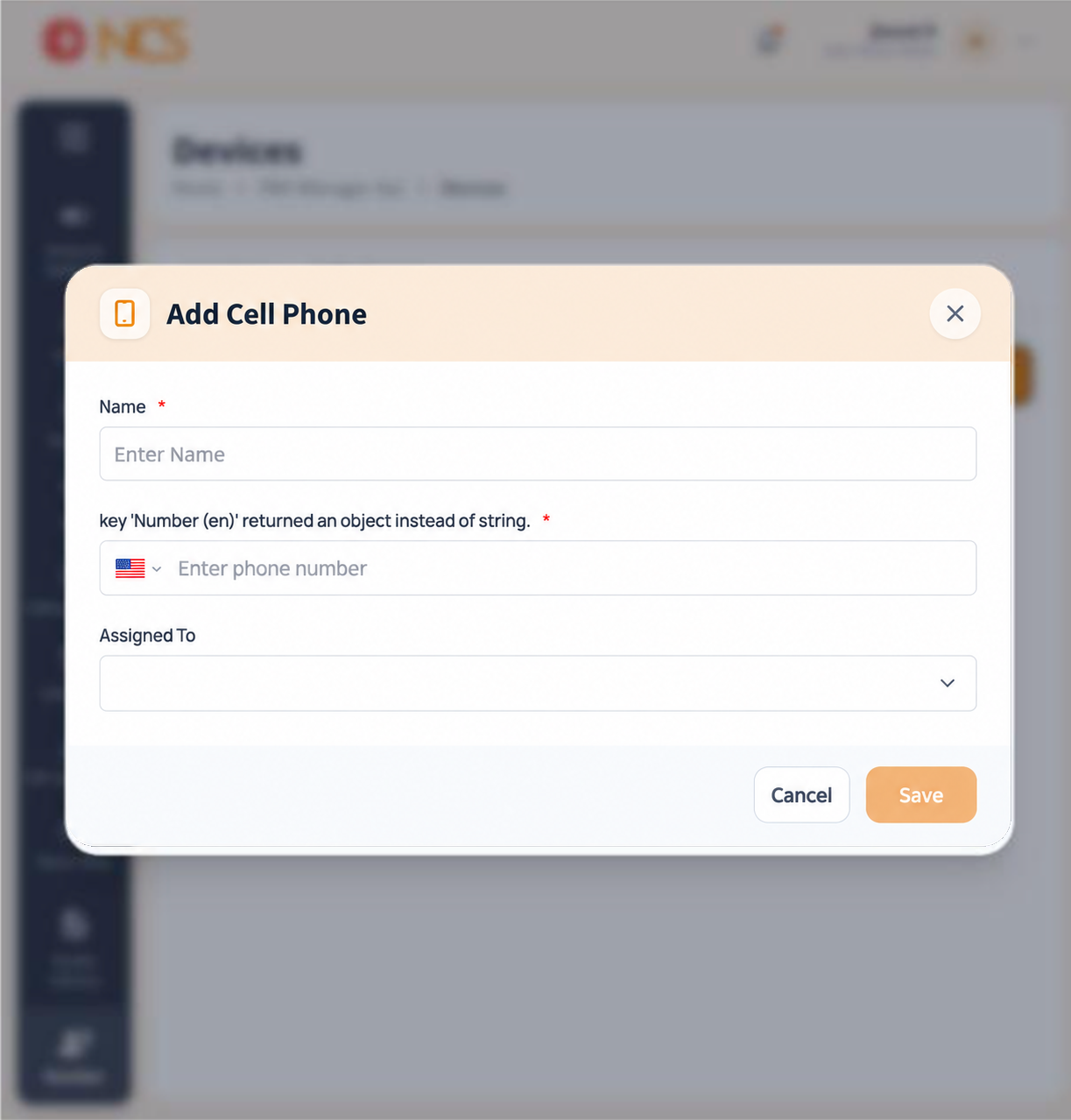
- Open PBX Manager > Number and select Cell phones.
- Select Add Cell Phone.
- Enter the Name, marked mandatory, placeholder Enter Name. Name it for the person and the device, for example Duty manager mobile.
- Select the country. The selector defaults to International and lists every country.
- Enter the phone number, placeholder Enter phone number.
- Select the assignment selector, defaulting to None, and choose the user this mobile belongs to.
- Select Save, or Cancel.
Save stays disabled until the required fields are valid. A greyed-out Save means a value is missing or the number does not match the selected format.
Figure key, Add Cell Phone form
- Form title.
- Name field.
- Country or International format selector.
- Phone number field.
- Assigned To selector.
- Cancel button.
- Save button, disabled until the form is valid.