PBX 7.2 Create a SIP account
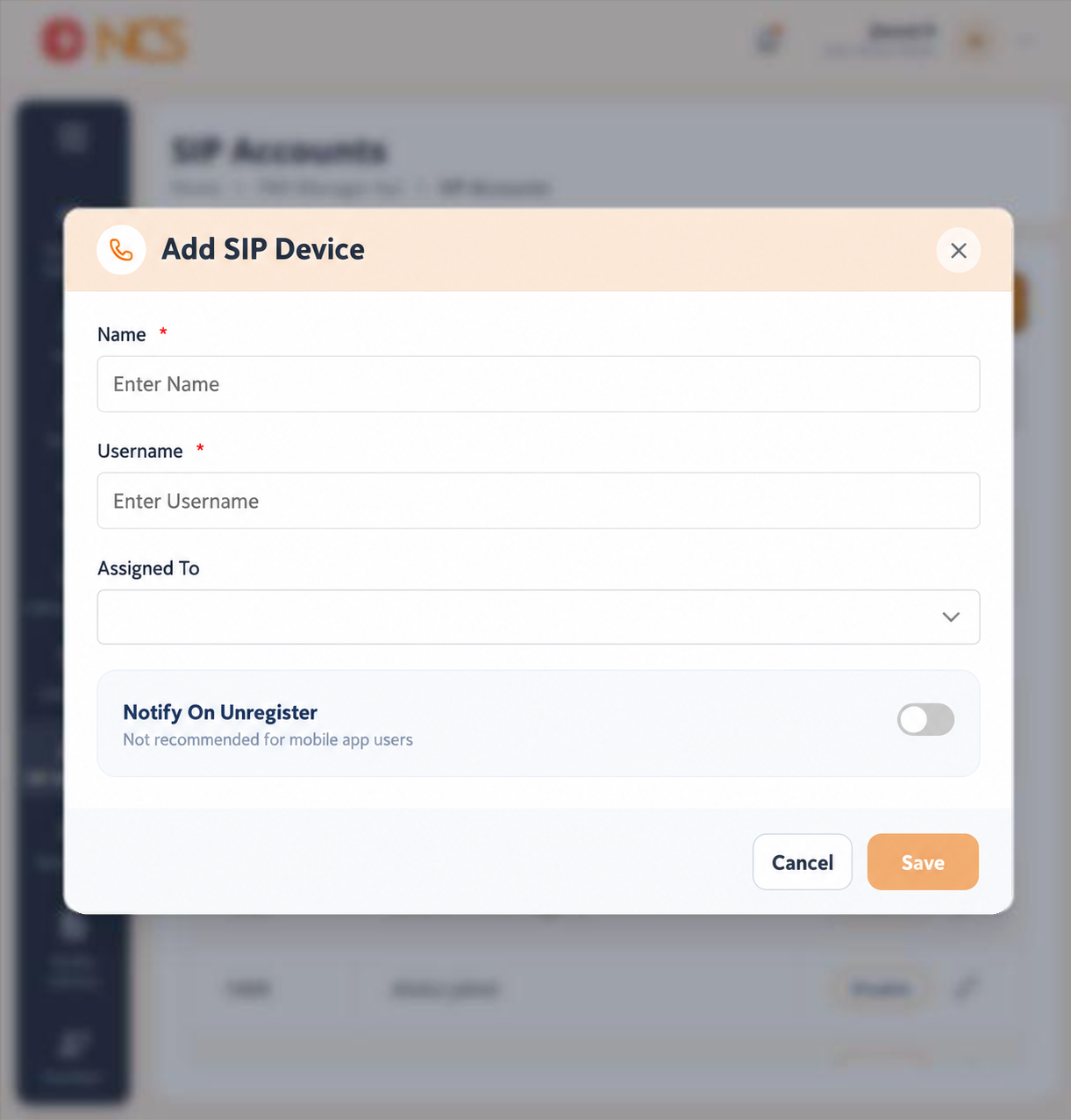
The Add SIP Account form's fields are confirmed against the live build: Name (Enter Name), Username (Enter Username), an assignment selector defaulting to None, and a notification switch.
- Open PBX Manager > SIP Accounts.
- Select Add SIP Account.
- Enter the Name. Name it for the device, for example Reception desk phone, so the list stays readable.
- Enter the Username.
- Select Assigned To, the user who will hold the account.
- Set Notify On Unregister only if you want to be told when the device drops its registration. The form states that this is not recommended for mobile app users.
- Select Save, or Cancel.
Leave Notify On Unregister off for softphones and mobile apps. A mobile app unregisters every time the phone sleeps or changes network, so the setting produces continuous notifications that mean nothing. Reserve it for a desk phone whose registration should never drop.
Figure key, Add SIP Device form
- Form title.
- Name field.
- Username field.
- Assigned To selector.
- Notify On Unregister control, with its mobile-app advisory.
- Cancel button.
- Save button.