1. Sign in to the tenant portal
Your organisation has its own sign-in address on the NCS platform, formatted as:
https://<your-subdomain>/bvoice
info
Your platform contact provides this address when your tenant is created. Use that specific address, not a shared or demonstration host.
1.1 Sign in
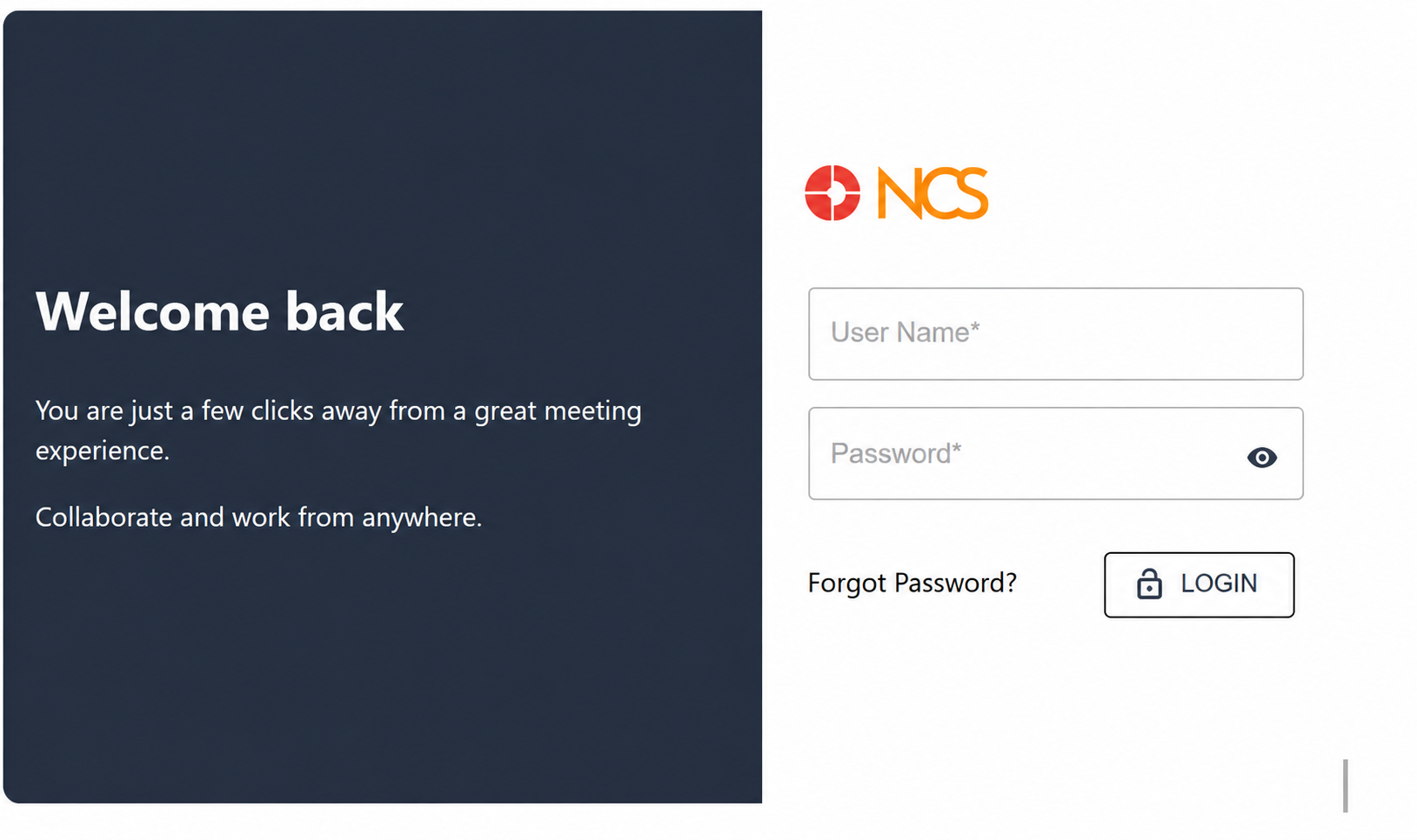
Follow these steps to access your account:
- Open your organisation's NCS sign-in page in a web browser.
- Enter your user name in the User Name field. (Note: This is the login identifier issued to you, which may not be your email address.)
- Enter your password in the Password field.
- Optional: Select the eye icon at the right of the Password field to reveal the characters and confirm what you typed.
- Select Login.
The page title is Sign In and the action button is labelled Login. Both refer to the same action.
Upon successful sign-in, the dashboard opens:
- The signed-in account's Name and Role are displayed at the top right.
- The Portal Build Number is displayed on the dashboard.
tip
Always quote the Portal Build Number when raising a support request.
Figure Key: Sign-in Page Elements
- Tenant Logo & Product Name
- User Name Field
- Password Field
- Eye Icon (reveals/hides password characters)
- Forgot Password? link
- Login button