2.10 Edit a user, Overview tab
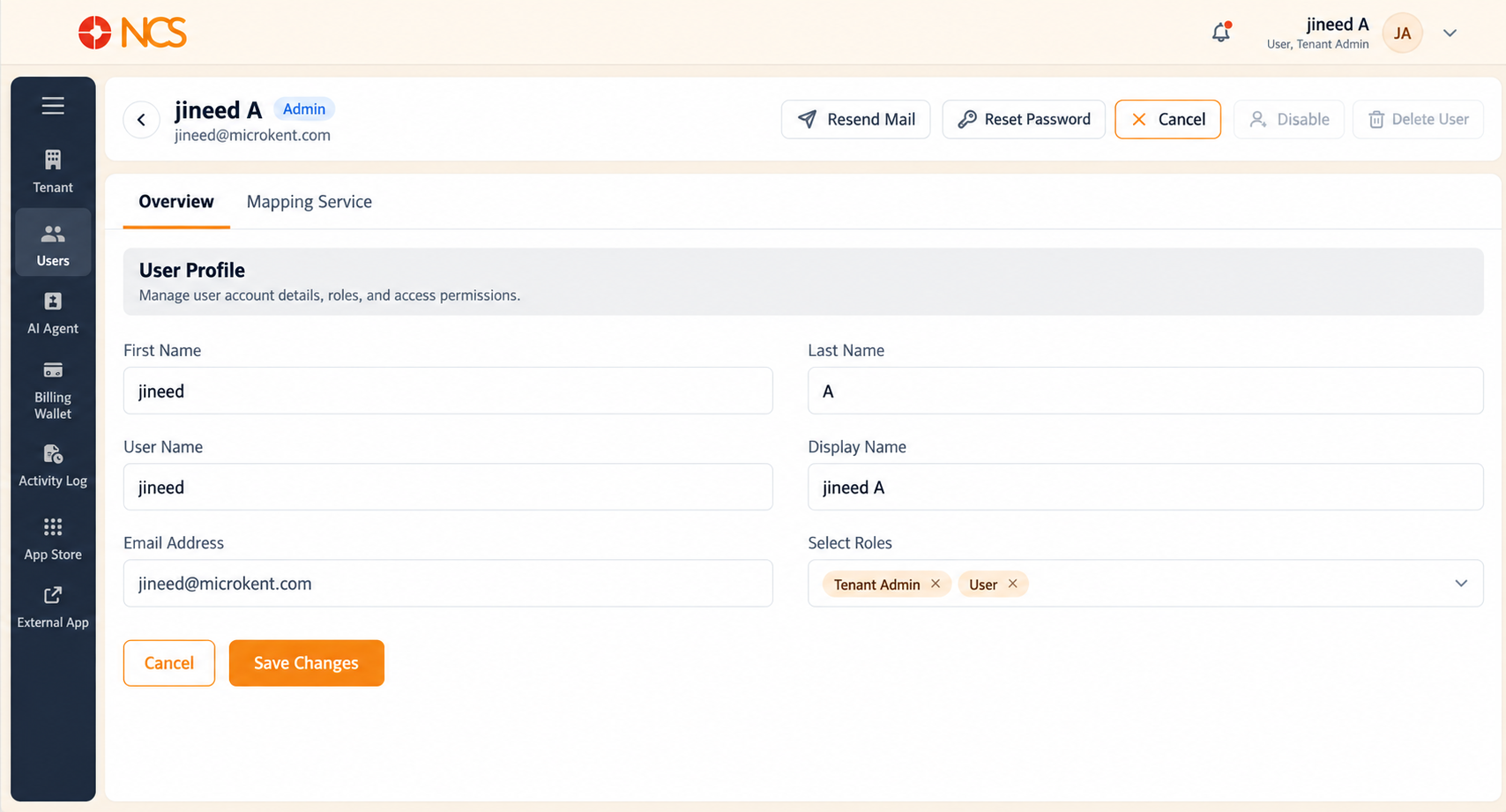
Selecting the pencil icon (Edit) on a user's row opens that user's record. The page has two tabs, Overview and Mapping Service, and a row of quick actions at the top right.
Navigation on this page:
- The back arrow (
<) at the top left returns you to the Users list. - Overview holds the user's identity and roles.
- Mapping Service holds their telephony credentials (see 2.11).
Quick actions at the top right, five controls: Resend Mail, Reset Password, Cancel, Disable, Delete User. These are the same operations as the Users list row actions, under the Edit User page's own names: Resend Mail is Resend Email, Reset Password is Change Password, and Delete User is Delete.
Fields on the Overview tab:
| Field | Editable |
|---|---|
| First Name | Yes. |
| Last Name | Yes. |
| User Name | No. Read-only. The login identifier is fixed once the account is created. |
| Display Name | Yes. This is the name shown across the platform and in the Users list. |
| Email Address | No. Read-only. To change a user's email address, contact support@ncsapp.com. |
| Select Roles | Yes. Select the dropdown to add a role, or the x on a role tag to remove it. The two roles are Tenant Admin and User (see 2.3). |
Saving - Select Save Changes at the bottom of the form to apply your edits. Two Cancel buttons. This page has a Cancel in the top-right quick actions and a Cancel at the bottom of the form beside Save Changes. Both leave without applying your edits. Use the one at the bottom of the form as the counterpart to Save Changes when you decide against a change you have typed, and treat the top-right Cancel as the page-level exit.
Figure key, Edit User, Overview tab
- Back arrow (
<), top left, returns to the Users list. - Overview tab, selected.
- Mapping Service tab.
- Resend Mail quick action, top right.
- Reset Password quick action.
- Cancel quick action.
- Disable quick action.
- Delete User quick action.
- First Name field.
- Last Name field.
- User Name field, read-only.
- Display Name field.
- Email Address field, read-only.
- Select Roles field, with role tags, each tag's x, and the dropdown arrow.
- Cancel button, bottom of the form.
- Save Changes button.