NCS Chat
NCS Chat is a versatile communication platform designed to enhance collaboration and connectivity within organizations. It integrates various communication tools, such as direct messaging, group chats, and video conferencing, into a unified interface. This enables users to effectively manage their communications, share files, and organize group discussions in a streamlined manner.
Getting Started with NCS Chat
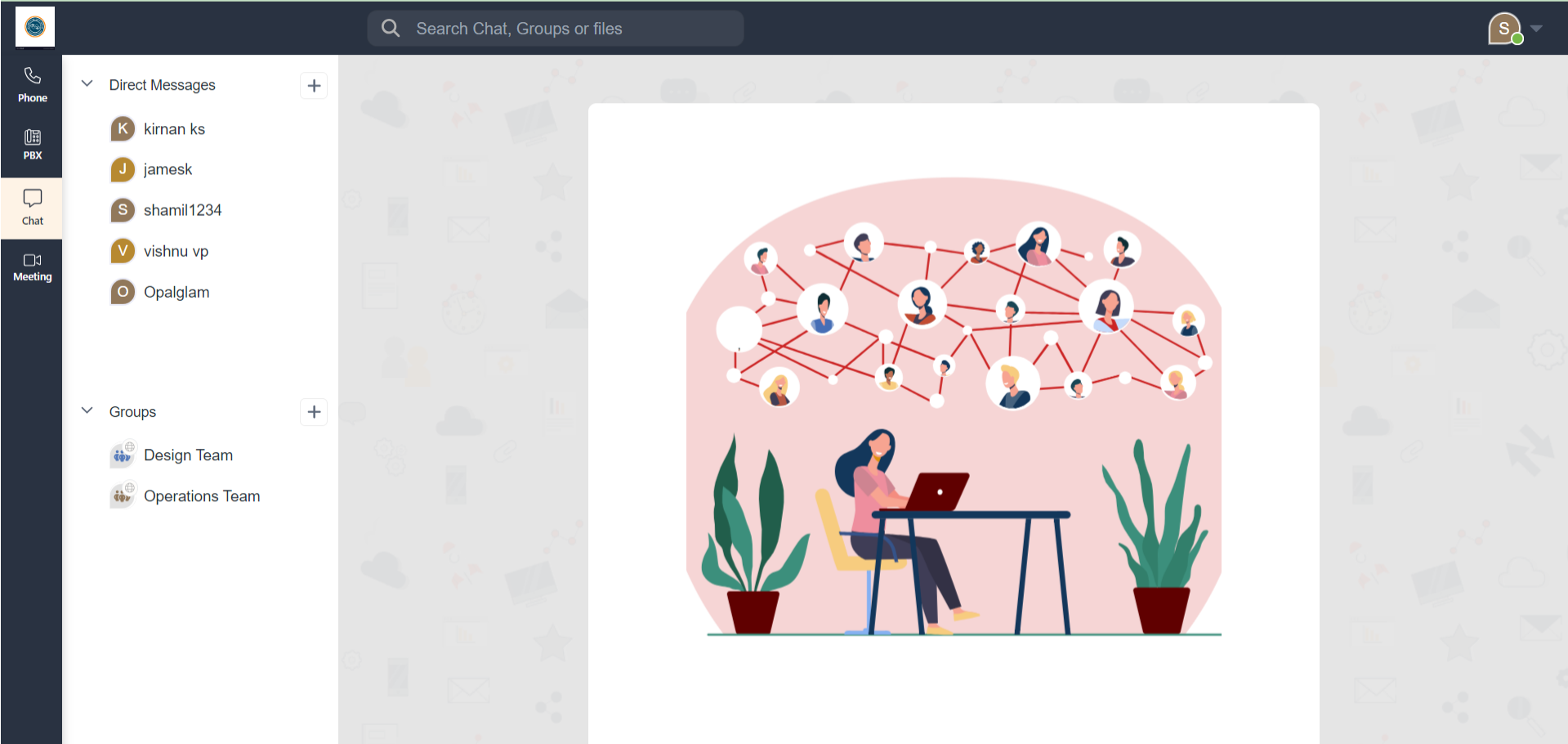
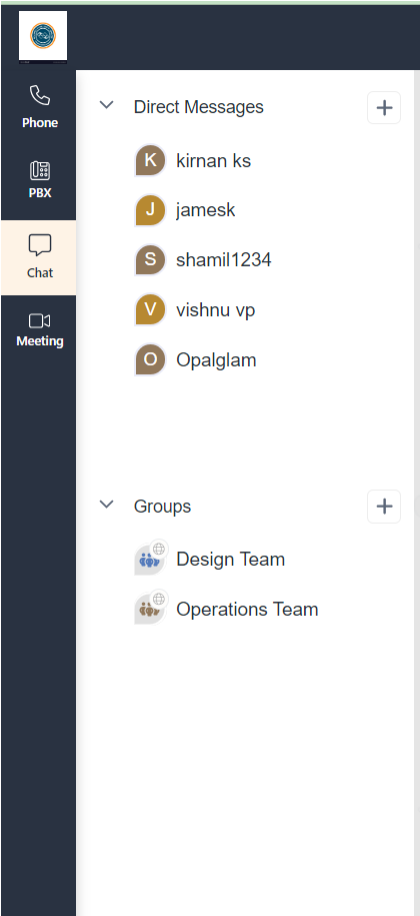
By clicking on the Chat option inside the navigation menu users will be directed to a landing page as shown below. On the left panel, you will see your Direct messages and Group. These menu items are expandable upon which it will display the most recent chats in the respective sections.
Direct Messages
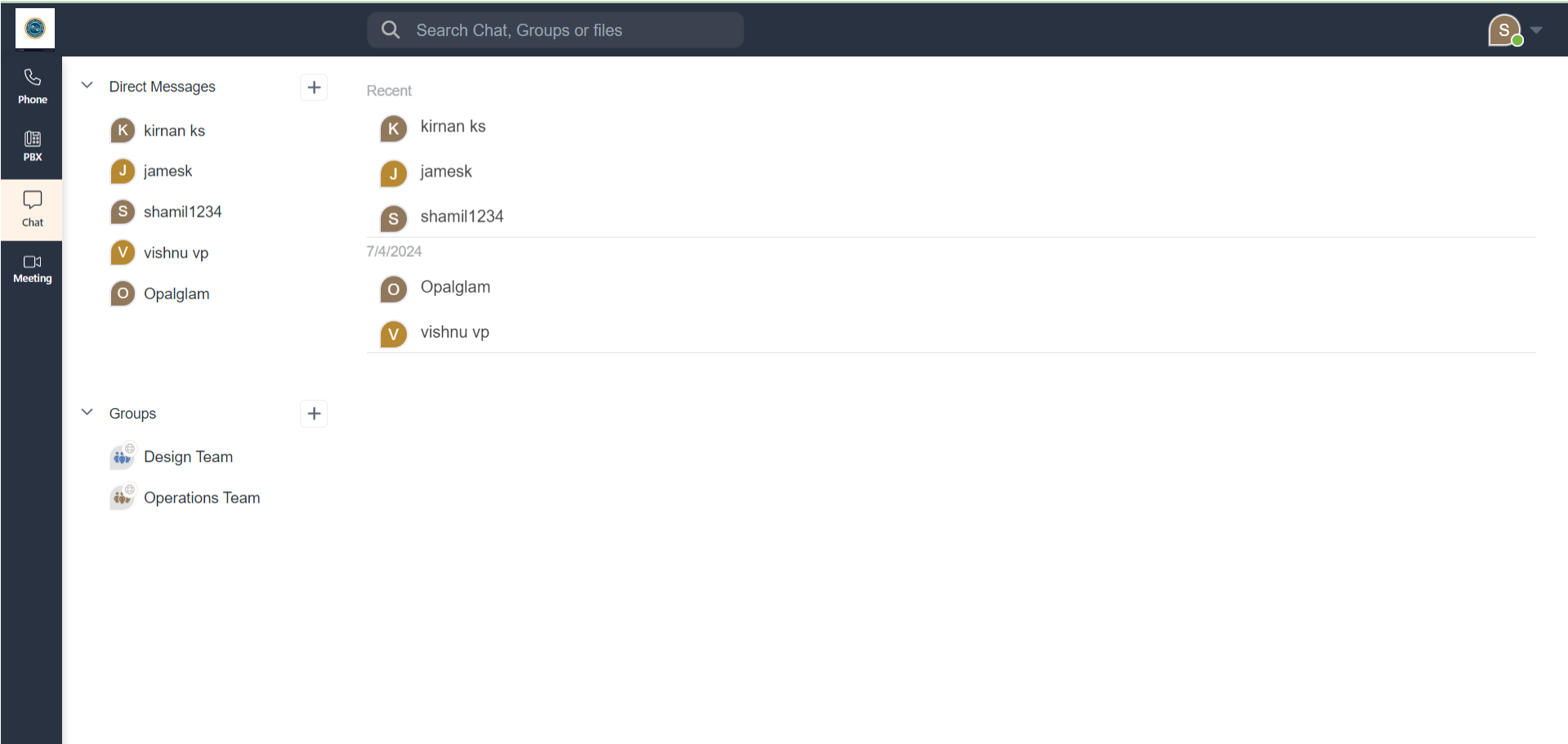
For Direct Messages, users can communicate with a single person. All recent personal chats are displayed under Direct Messages. There is a + button against the Direct Messages menu item, which, when clicked, opens a pop up for a New Chat window which shows chat history. Users can start a new chat by searching individually by name in the search bar.
Groups
Similarly, for Groups, users can communicate with one or more than one person with an option to add more people to the conversation at any point of time. Upon clicking the + button, a pop-up box will appear nearby with Create Group action. Click on the Create Group to open the Create Group modal. You can fill in the input field, which includes Group Name, Description, Search & Add Members, and a dropdown menu to set the type of group as Public or Private.
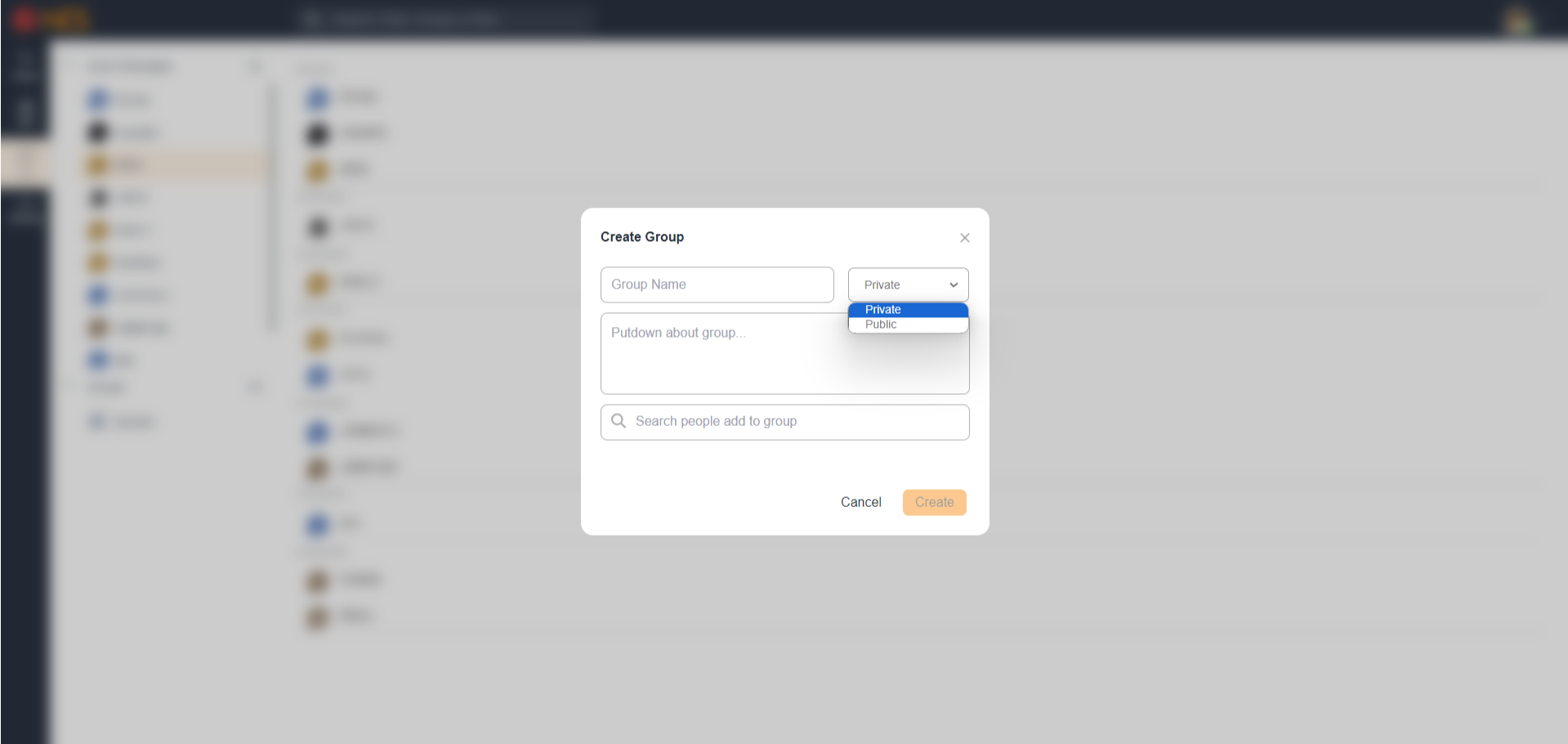
A Public group is open for all the users of the particular tenant. That is, anyone from your organization can search, find and join a Public group. A Private group is accessible to only those who are added or invited to the conversation.
Click on the Search field to find and add people to the group. Upon typing, you will get the most close search results in real time in a drop down right below the field. Select the preferred people which will make them as chips and be listed inside the Search field. Click on the Close button on the chips to remove the selection.
Fill in the Group Name and Description field, set the type of the Group and search and add people to the group. And then click on the Create button to create a new group conversation. This will open a Chat Window to the left of the Navigation Bar. Click on the Cancel button to cancel the group creating process.