Chat Call
The Call section of NCS is part of the Chat and hence is integrated with Chat. You can make or receive calls with any number of people in the call.
Incoming Call
All incoming calls initially will come as an Incoming Call Modal. The Incoming Call Modal will display the Name and Avatar of the Caller with a message ‘Calling You’. The bottom section of the modal features majorly three action buttons - Answer, Reject, and Answer Later.
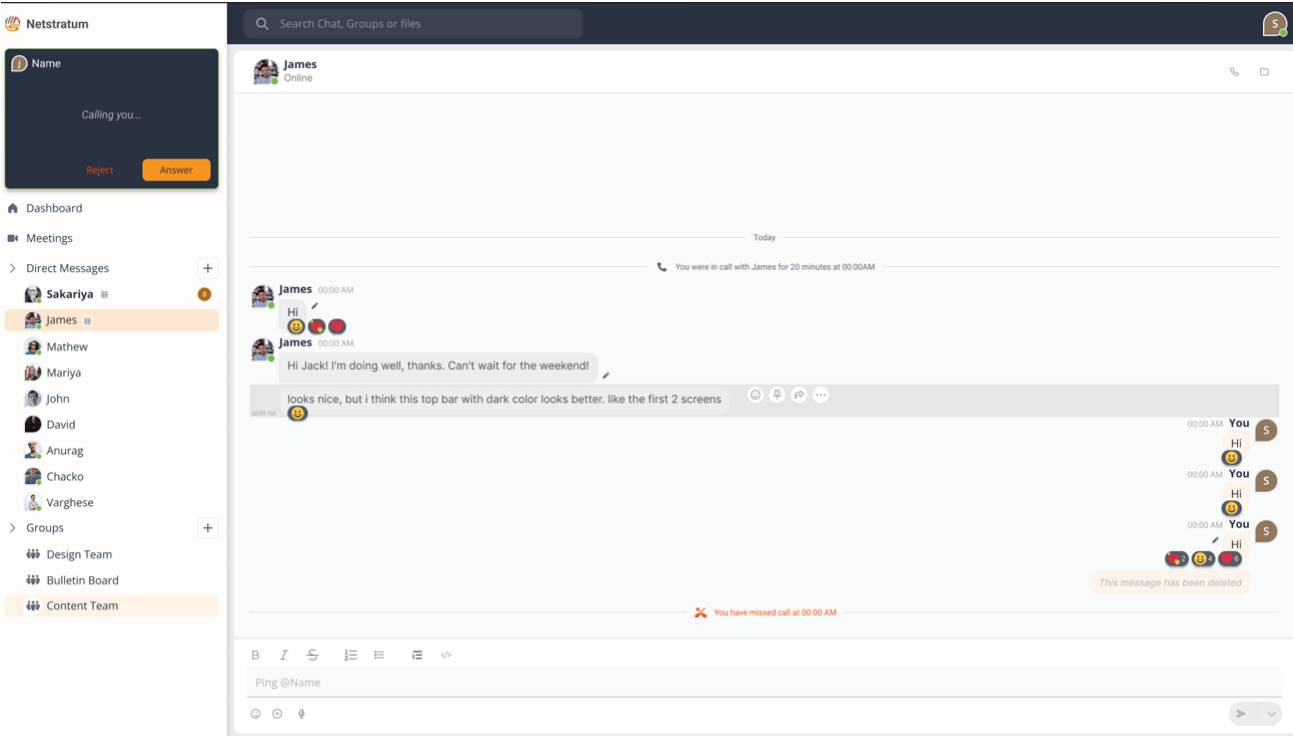
Clicking the Answer button immediately connects you to the call and becomes an Ongoing Call. A Call Mini Tab will appear at the top of the Chat Navigation Bar. Read more on Ongoing Call here Ongoing Call
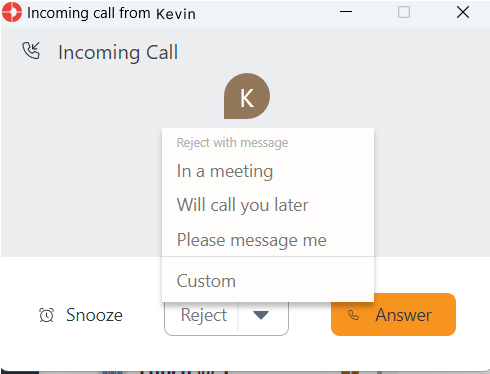
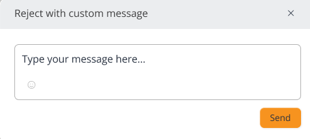
Click on the Reject button to reject a call. You can reject a call with a message as well by clicking on the drop down icon beside the Reject button. This will open a drop down menu with some default messages - In a Meeting, Will Call You Later, Please Message, and a Custom option. Selecting Custom opens Reject with Custom Message pop-up box, allowing users to craft a personalized rejection message and enhance it with emoji buttons.
Selecting Answer Later closes Incoming Call Modal. But a Call Mini Tab will appear at the top of the Chat Navigation Bar. This mini tab will show the Name and Avatar of the Caller with a message ‘Calling You’. It will also show quick buttons - Answer and Reject. You can come again at a later time to Answer and join the call or Reject the call, until the caller aborts the call.
Incoming Call when there is an Ongoing Call
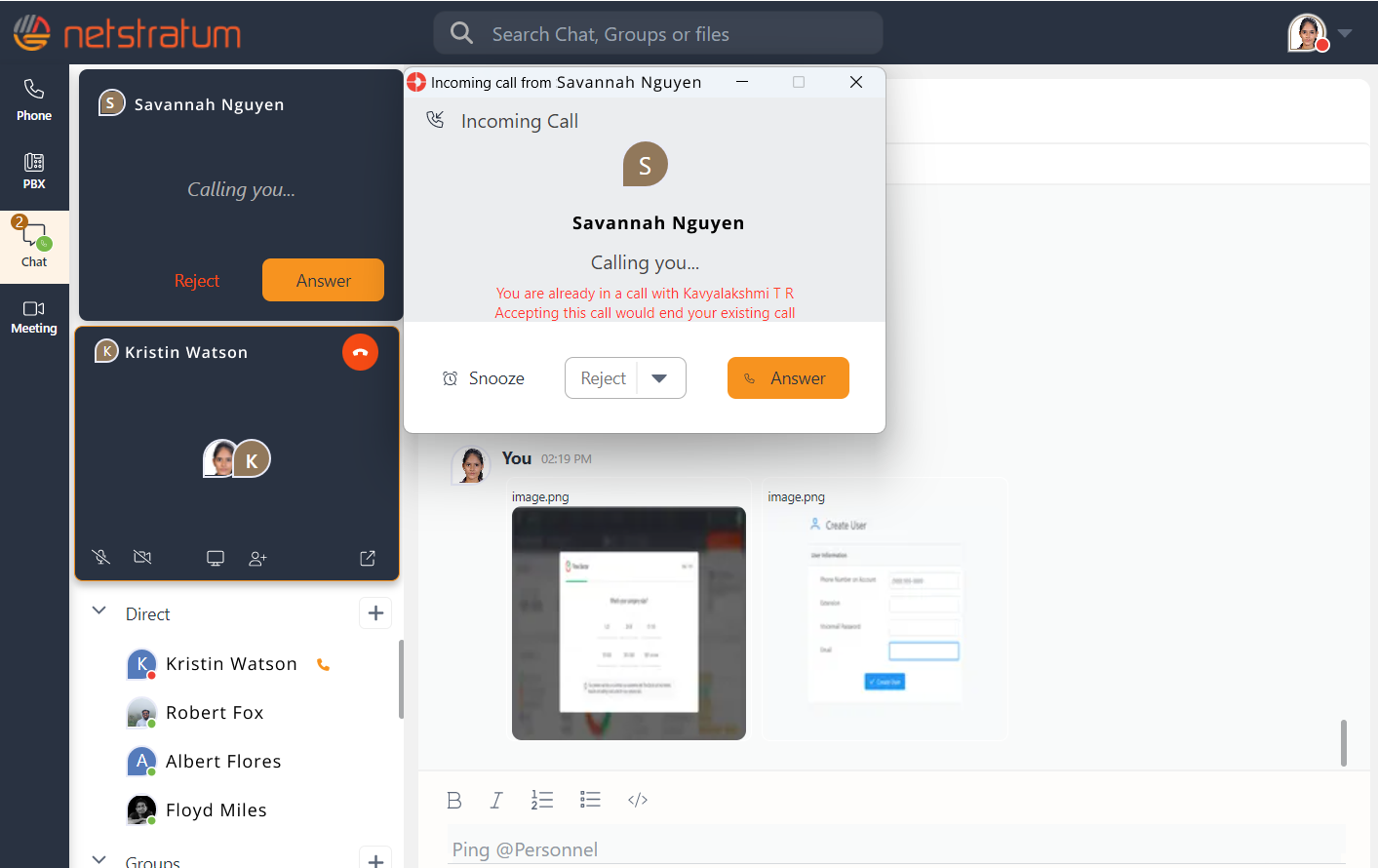
If a new call comes in while you are on an Ongoing Call, another Incoming Call Modal with additional elements appears.
An additional Info Message will be displayed at the bottom of the modal - Answering this call will end your current call with <Caller Name>. So if you click the Answer button, you will leave from the Ongoing Call and the Incoming call will change to Ongoing call.
Outgoing Call
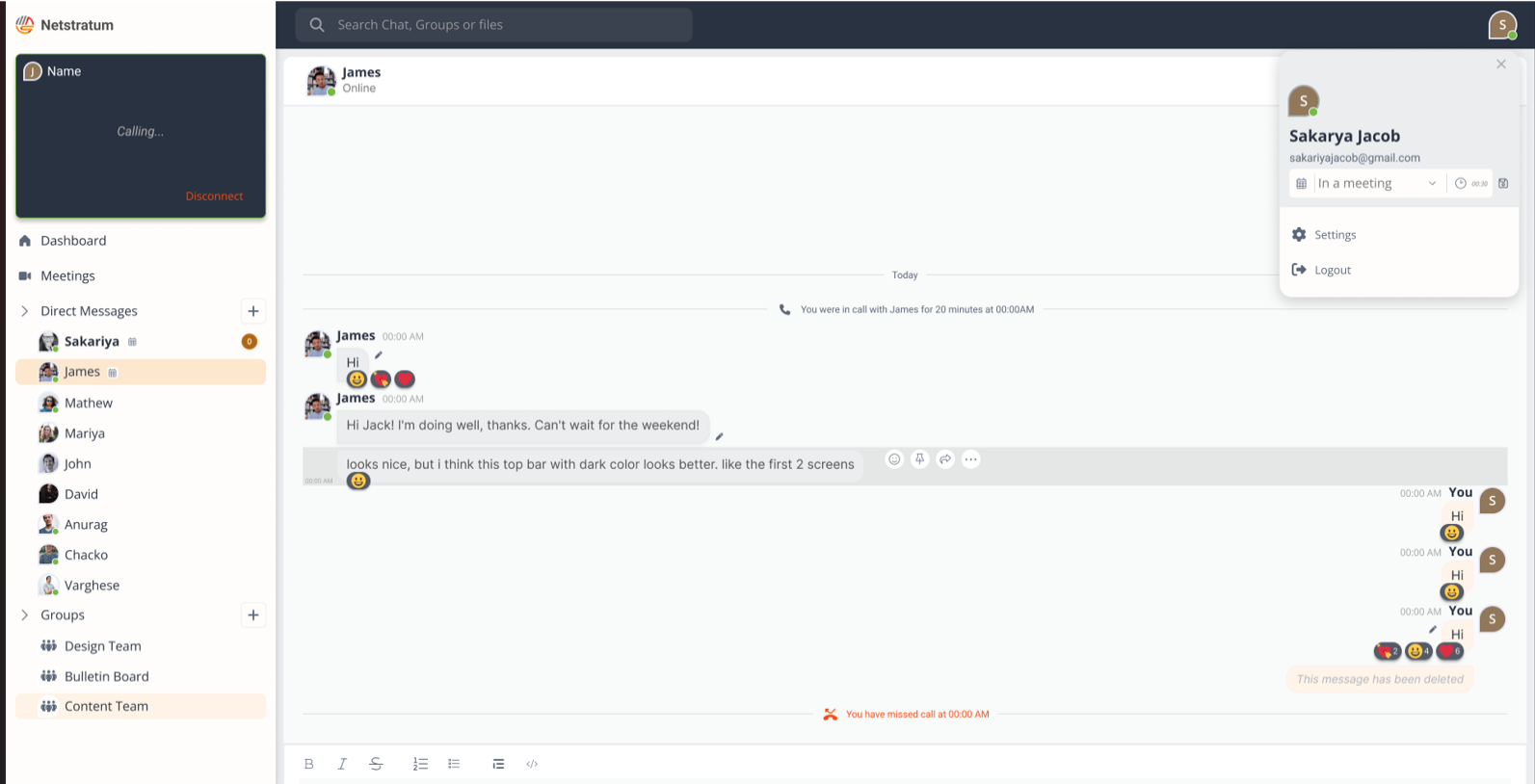
To make a call, open the Chat Window of the Person or Group by clicking on Chat listed in the Chat Navigation Bar. Click on the Call button at the top right of the Chat Top Bar to initiate the call. The Call will go to Ongoing Call and the Call Mini Tab will open in the left Navigation Bar.
This mini tab will show the Name and Avatar of the Callee with a message ‘Calling’. It will also show a quick button - Disconnect. You can abort the call by clicking on the Disconnect button.
If an outgoing call is not answered, you will receive a message in the Chat where you initiated the call stating, ‘Your call was not answered by <name> at <time>’.
Ongoing Call
An Incoming Call or Outgoing Call once accepted becomes an Ongoing Call. An Ongoing Call can be viewed in a Mini Call Tab as well as an expanded Call Window.
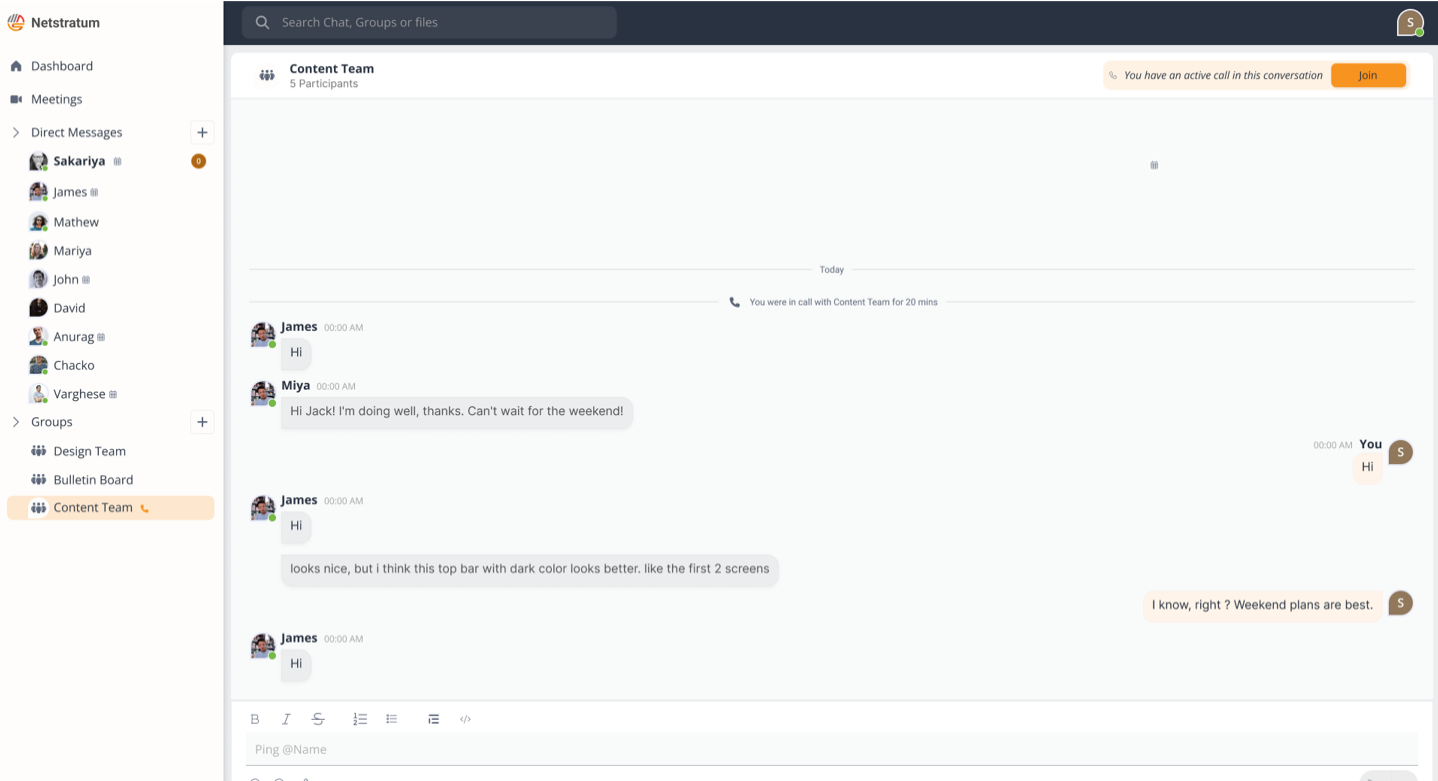
Additionally, when you open the Chat Window of the active call, a message ‘You are in an active call in this conversation’ with a Leave button will appear at the right end of Chat top Bar.
Mini Call Tab
An ongoing call as Mini Call Tab has only quick actions and information. At the top left of the tab, the Name and Avatar of the Chat in which the call is taken will be displayed as default. At the top right, there is an End button. At the center of the tab, participants' avatars are displayed.
The Bottom part of the Mini Call Tab lists more action buttons. - Mic Mute / Unmute, Video On/Off, Screen Share, and Add Members.
Active Speaker
In an Ongoing Call, the Active Speaker name is displayed at the top of the call modal in green text, accompanied by a Mic icon. This active Speaker replaces the default Chat Name and Avatar as and when any member of the call speaks.
Video
Click on the Camera icon to turn on your video. If any member of the call has turned on their Video, the middle part of the Mini Call Tab will be replaced with their video if they speak. This active speaker video replaces the default member list.
Screen Sharing
Click on the Screen Share icon to share your screen with other members of the call. A Share Now modal will open up allowing you to choose the screen you want to share. Also, a Pause and Stop screen share icons will replace the Screen Share icon to pause or stop the screen share process respectively.
The Share Now modal offers two options for sharing - Entire Screen and Window. Entire Screen lists multiple screens whereas Window lists corresponding windows of the screen selected in the Entire Screen section. The Modal also displays a help note for you to understand how to choose screens/windows to share.
Select a screen and click on the Share button. To abort the screen sharing process click the Cancel button.
NCS offers multiple screen shares, so that each member can share their screen.
Add participants
Click on the Add icon to add more participants to the call. An add modal will appear where you can search for people. Click on the Close button to remove the selection. Once you have selected the desired people, click on the Add button to initiate a call to them. If you want to abort the adding process, click on the Cancel button.
Additionally, you can add people to call by simply opening the person’s Chat Window. At the right end of the Chat Top Bar, the call button will be replaced by an Add button with a message ‘You can add <Name> to your ongoing call’. Click on the Add button to initiate a call to the person. The message will change to ‘Waiting for <Name> to join your call’ and an Add Again button will appear.
Unanswered / Missed / Leave Calls
If you leave a call unanswered or you have missed a call or leave a call with other participants still in the call, you can always join back by from the Chat Window. At the right end of Chat Top Bar, you will get a Join button with a message ‘You Have An Active Call In This Conversation’. Additionally, a call icon will appear in the chat modal next to the Name, indicating that a call is in progress and you can join the call anytime. Click on the Join button to join the ongoing call.