Chat View
The Chat View area of the Chat Window serves the purpose of displaying all the chats, real time. Chat view is scrollable to view all chat history. There are two major views in Chat View - Single Side Stacking and Two Side Stacking.
Single Side Stacking
Single Side Stacking in the Chat View lists the messages on a vertical stack on one side only - meaning, sent and received messages are displayed at the left side only. The chat appears as the most recent at the bottom with the default position always at the bottom of the Chat. The messages will be segmented with the Date as well.
Message Bubble
In Single Side Stacking, each message listed includes the Sender’s Name & Avatar, Time, Read Receipt and Presence. Hovering over a message allows users to act on the message. Hover over a message to view the Quick Action menu - React, Pin, Reply, Edit, Forward, Delete and Message Info.
Read Receipts
The Read Receipt indicates the message delivery status. A single tick means the message is sent but not delivered. A double tick means the message is delivered. A colored double tick means the message has been read by all people in the Chat. A red colored exclamation indicates the message was not sent. Read Receipts are shown only on those messages sent by you.
React to a Message
To React to a message, hover over the message to view the Quick Action menu. Click on the Emoji icon to open the Reactions modal. You can select your preferred emoji to react to the message. Once you react to a message, your reactions will be listed right below the message as the emoji. On hovering, you will see your name.
You can also see all other reactions to any message by any other member of the chat. The reactions will be numbered based on how many people reacted with the same emoji. Also, on hovering, the list of people who reacted with that emoji will be listed.

Pin a Message
To Pin a message, hover over the message to view the Quick Action menu. Click on the Pin icon to pin the message. Once you pin a message, the Pin icon will expand to show a More Option icon. Click on the More Option to open the Add a Caption modal. You can give a caption to the pinned message in the input field in this modal for a quick identification of the message. This Caption will be mentioned against the message in the pinned messages list. A pinned message in the Chat Window will be indicated as Pinned in italics text right below the message.
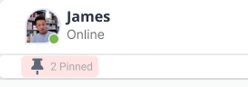
You can access all your pinned messages from the Pinned Message bar right below the Chat Top Bar. This Bar will show the number of pinned messages also in the format - n pinned Messages , where n being the total number of pinned messages. Click on this bar to open the Pinned Messages modal that lists all pinned messages, sent by any member of the Chat, in the most recent pin at the top order. Each pinned message will have the date and time it was sent as well as Caption, if any. Clicking on a pinned message redirects the user to the specific part of the chat to display that message.
Reply Message
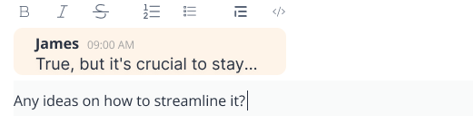
To Reply a message, hover over the message to view the Quick Action menu. Click on the Reply icon to activate the Message Input Box with the message to which you want to reply attached right above the text Input Field. Type in the reply you want to send to the selected message in the Input Field and Click Send.
The replied message will be listed in the Chat View along with the truncated text of the message to which you have replied. On clicking on this message will take you to the part of the Chat where this message is displayed.
Edit a Message
To Edit a message, hover over the message to view the Quick Action menu. Click on the More Option to open the Options List. Click on the Edit item to start editing. Clicking on Edit opens a small version of the Message Input Box right where the message is with the selected message already filled in. You can make changes to a message here using all the Text Editors as well as Emoji. After editing, click the Update button to apply the changes and send. To maintain the message without changes, select the Cancel button. An edited message in the Chat Window will be indicated as Edited in italics text right below the message.
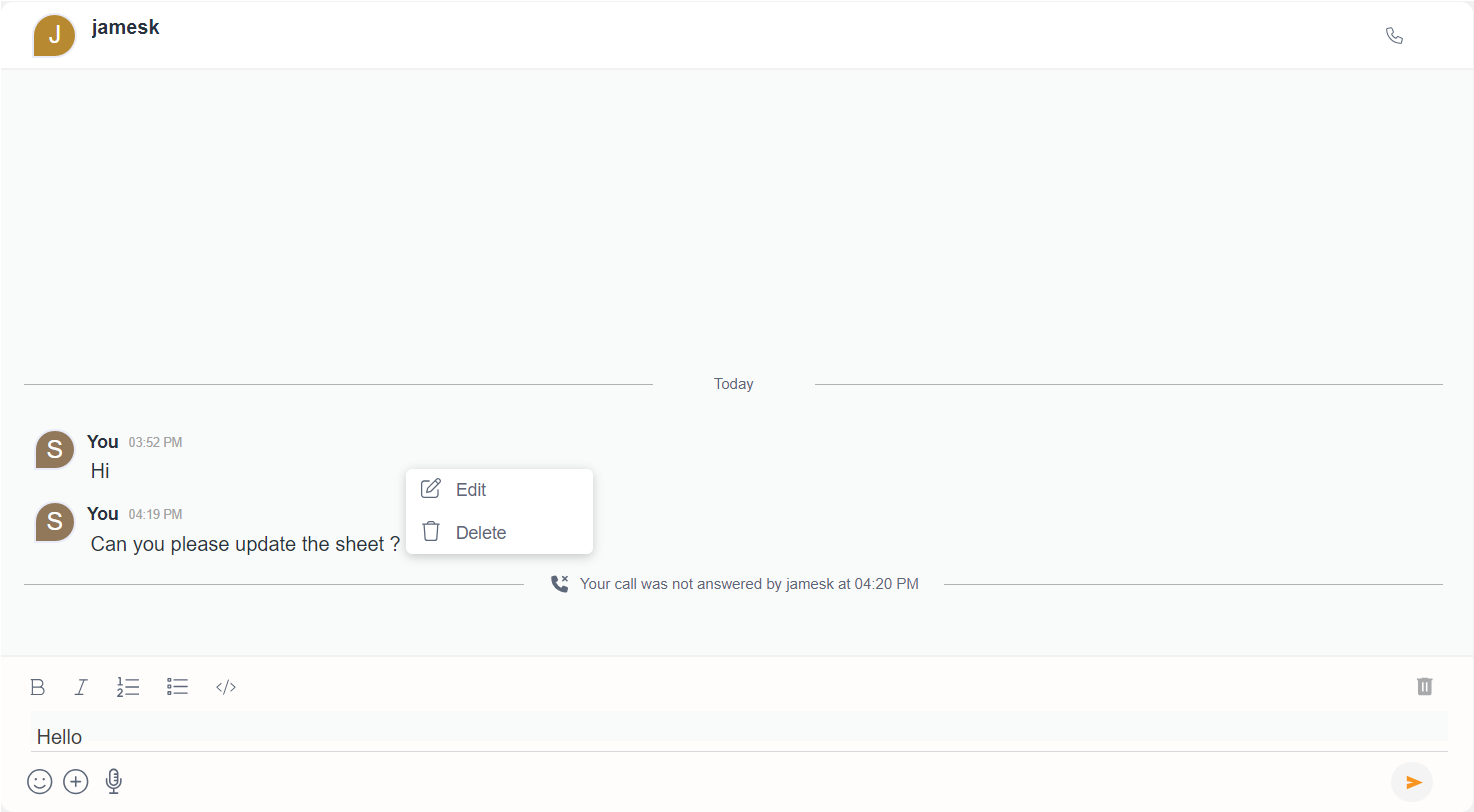
You can edit only those messages that are sent by you.

Delete
To Delete a message, hover over the message to view the Quick Action menu. Click on the More Option to open the Options List. Click on the Delete to prompt a Confirmation modal that conforms to whether you want to delete the message. Click on Delete to delete the message and on Cancel to stop the deleting process.
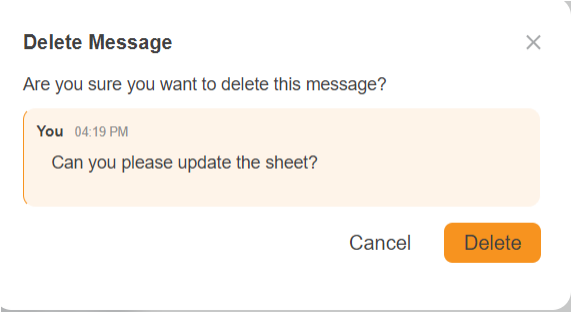
A deleted message will be displayed as “This message has been deleted.” in italics placeholder text.

File Options
On hovering on any type of file in the Chat View, you will have the Quick Action menu with a Download, Delete and Edit.
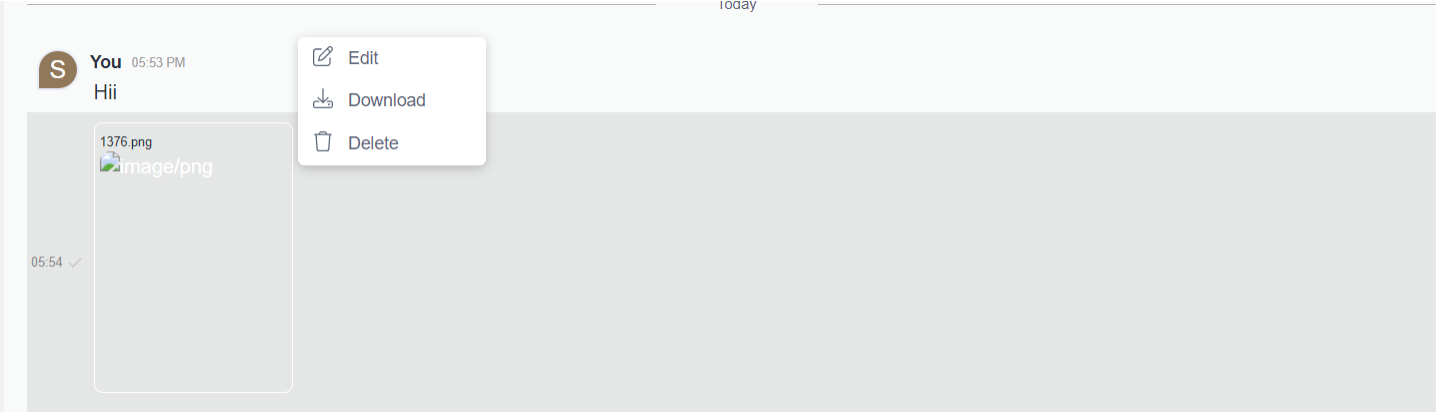
On hovering on individual files, in both cases of single file shared in a single instance and multiple files shared in a single instance, you will have an additional option displayed over that particular file. This includes Download and Full View.

Click on Download to download only the selected file. The Download icon will be replaced by a download progress icon when the download process is completed, this will be replaced by a download completed icon.
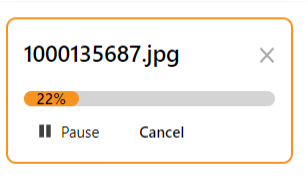
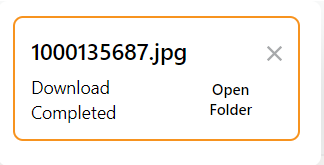
Click on Full View to open the file in the app. The file be opened in an overlay screen with the file opened at the center.
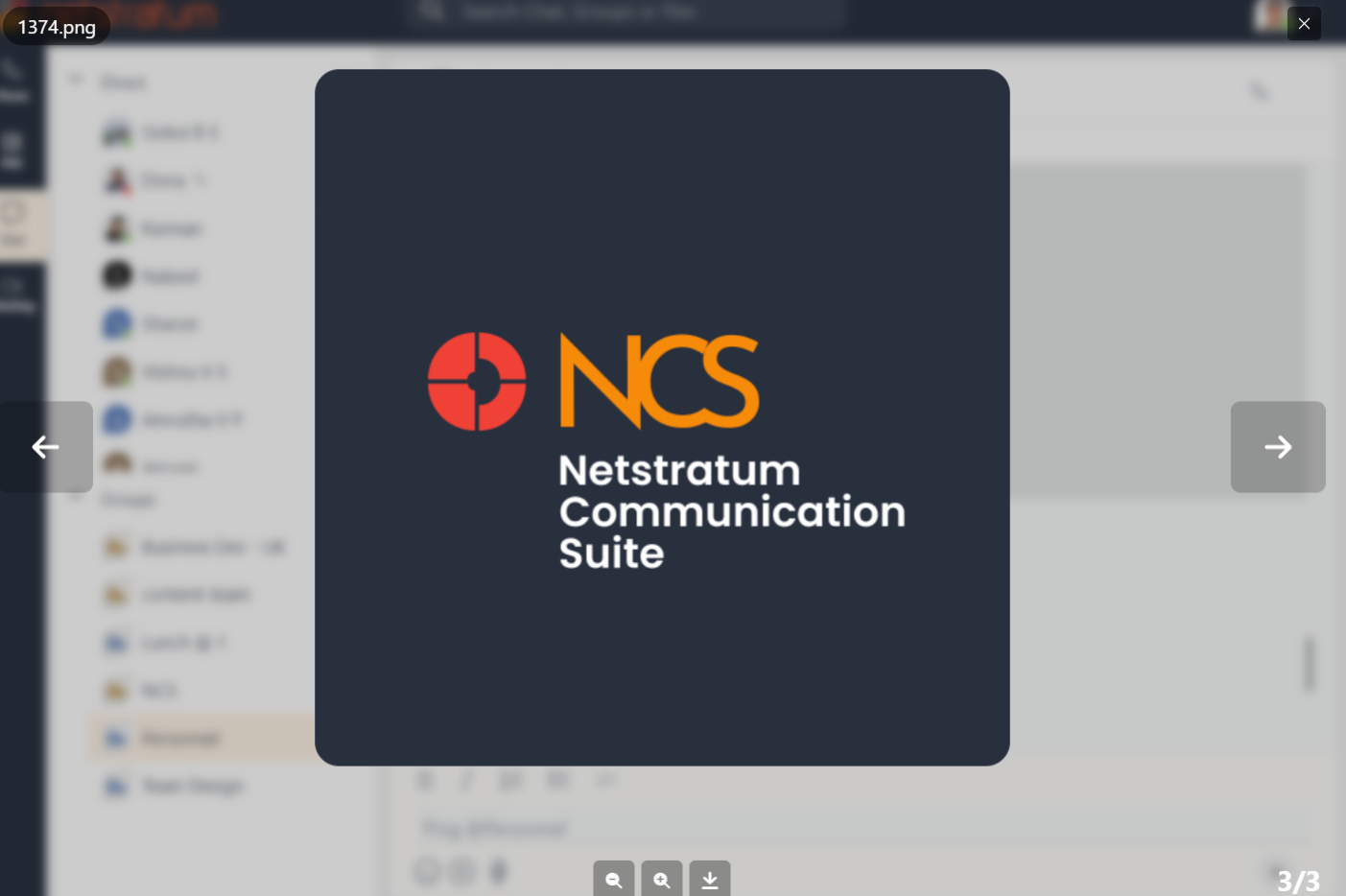
If there are multiple files shared in the same message instance, you will have two Navigation Arrows at the left and right ends along the middle. You can click these navigation arrows to move through each file.
Right below the file preview, any messages sent along with the file in the same Message instance will be displayed. At the bottom of the overlay, you will have the Zoom icon and Download icon. At the bottom right corner, the total number files in that instance will be displayed
In case of a video file, additional Player controls will be available to play, pause, seek, volume control and view in full screen.
Quick Profile
Quick Profile is a quick look of a person’s profile which can be viewed from the Chat View. A Quick Profile can be accessed upon hovering a person’ name inside the Chat View, whether it is the name on the Message Bubble or in the Mention. The Quick Profile contains Avatar, Display Name, Call button, Official Email Address, and a View More button. Clicking on View More will take you to the Chat Window of the person and open their Profile Modal.
Two Side Stacking
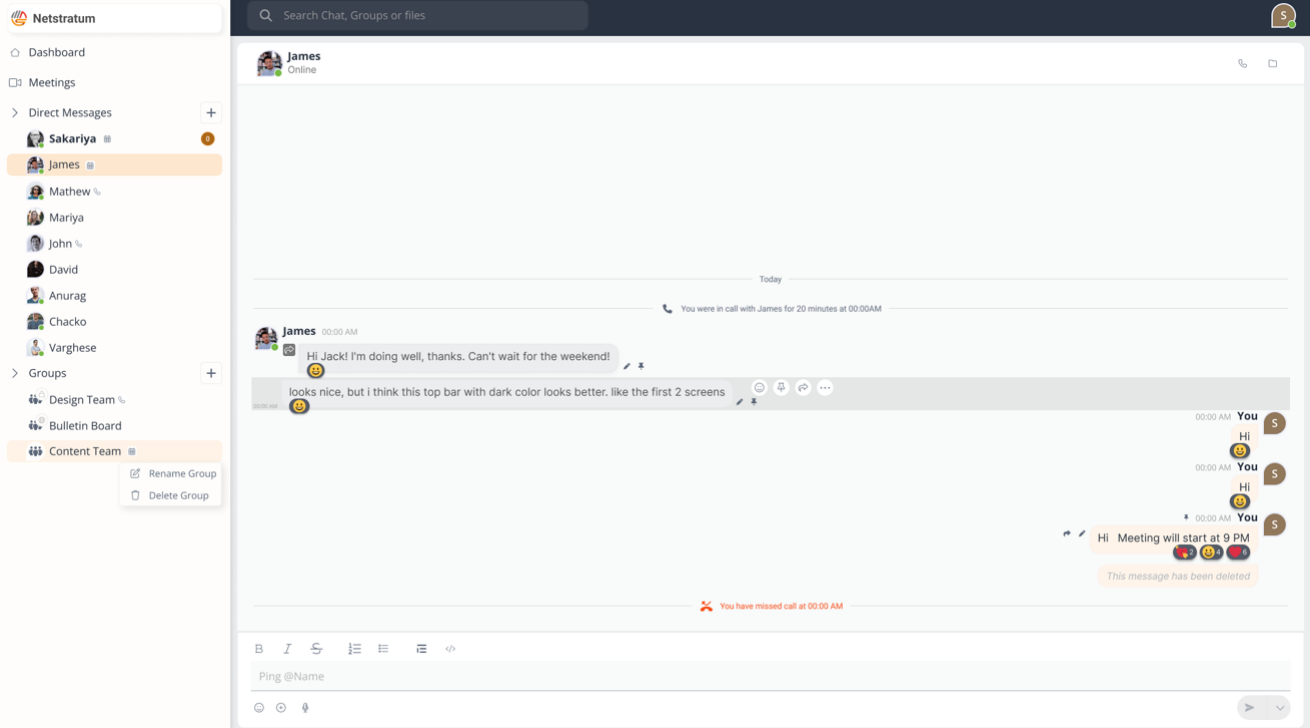
Two Side Stacking in the Chat View lists the messages on a vertical stack on both sides - meaning, sent and received messages are displayed right and left side, respectively. The chat appears as the most recent at the bottom with the default position always at the bottom of the Chat. The messages will be segmented with the Date as well.
Message Bubble
In Two Side Stacking, each message listed includes the Sender’s Name & Avatar, Time, Read Receipt and Presence. Hovering over a message allows users to act on the message. Hover over a message to view the Quick Action menu - React, Pin, Reply, Edit and Delete
Read Receipts
The Read Receipt indicates the message delivery status. A single tick means the message is sent but not delivered. A double tick means the message is delivered. A colored double tick means the message has been read by all people in the Chat. A red colored exclamation indicates the message was not sent. Read Receipts are shown only on those messages sent by you.
React to a Message
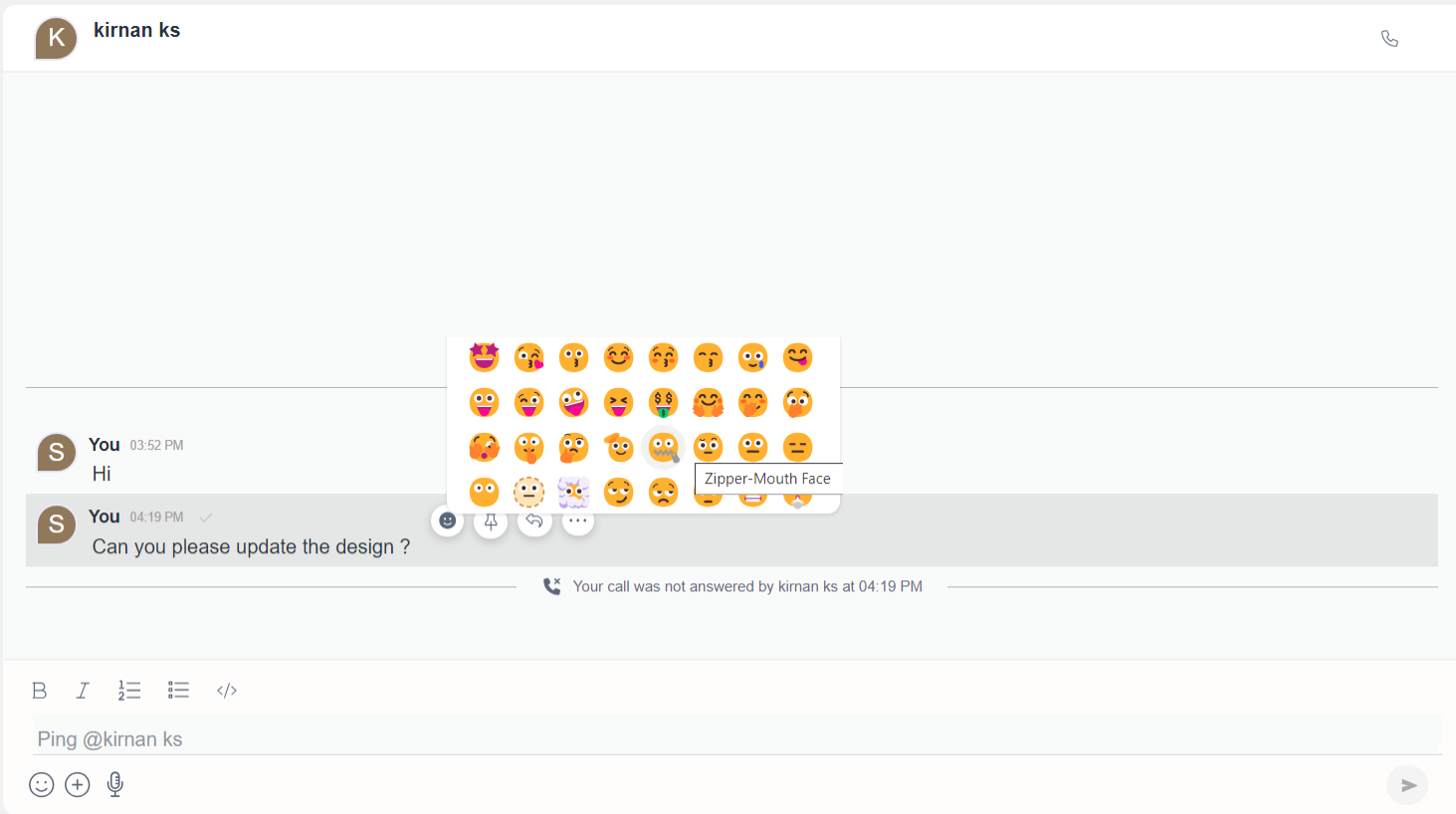
To React to a message, hover over the message to view the Quick Action menu. Click on the Emoji icon to open the Reactions modal. You can select your preferred emoji to react to the message. Once you react to a message, your reactions will be listed right below the message as the emoji. On hovering, you will see your name.
You can also see all other reactions to any message by any other member of the chat. The reactions will be numbered based on how many people reacted with the same emoji. Also, on hovering, the list of people who reacted with that emoji will be listed.
Pin a Message
To Pin a message, hover over the message to view the Quick Action menu. Click on the Pin icon to pin the message. A pinned message in the Chat Window will be indicated with a Pinned icon near the right bottom of the Message Bubble.
You can access all your pinned messages from the Pinned Message bar right below the Chat Top Bar. This Bar will show the number of pinned messages also in the format - n pinned Messages , where n being the total number of pinned messages. Click on this bar to open the Pinned Messages modal that lists all pinned messages, sent by any member of the Chat, in the most recent pin at the top order. Each pinned message will have the date and time it was sent as well as Caption, if any. Clicking on a pinned message redirects the user to the specific part of the chat to display that message.
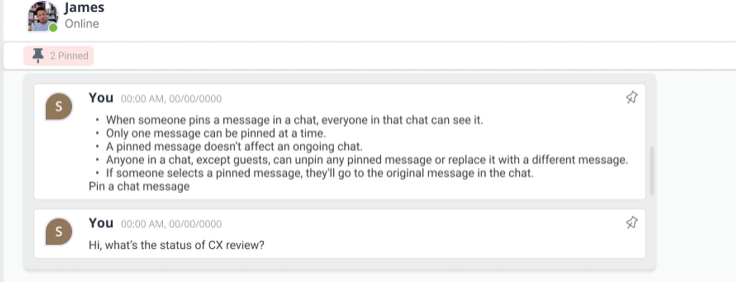
- When someone pins a message in a chat, everyone in that chat can see it.
- On one person can be pinned at a time
- A pinned message doesn’t affect an ongoing chat.
- Anyone in a chat, except guests, can unpin any pinned message or replace it with a different message.
- If someone selects a pinned message, they’ll go to the original message in the chat.
Edit a Message
To Edit a message, hover over the message to view the Quick Action menu. Click on the More Option to open the Options List. You can edit only those messages that are sent by you.
Read more on Edit a Message
Forward Message
To Forward a message, hover over the message to view the Quick Action menu. Click on the More Option to open the Options List.
Delete
To Delete a message, hover over the message to view the Quick Action menu. Click on the More Option to open the Options List. Click on the Delete option to delete the message. Read more on Delete
Message Info
To view Message Info a message, hover over the message to view the Quick Action menu. Click on the More Option to open the Options List.
File Options
On hovering on any type of file in the Chat View, you will have the Quick Action menu with an additional two options - Download All, and Delete All instead of just Delete.
Read more on File Options
Quick Profile
Quick Profile is a quick look of a person’s profile which can be viewed from the Chat View. A Quick Profile can be accessed upon hovering a person’ name inside the Chat View, whether it is the name on the Message Bubble or in the Mention. Read more Quick Profile