PBX
The NCS One PBX (Private Branch Exchange) system provides a robust platform for managing your internal and external communication needs. This system allows you to handle extensions, call routing, call history, and contact management efficiently.
On the left sidebar, click on the PBX icon to open the PBX system interface you will find buttons:- Contacts, Call History, Settings
Managing Contacts
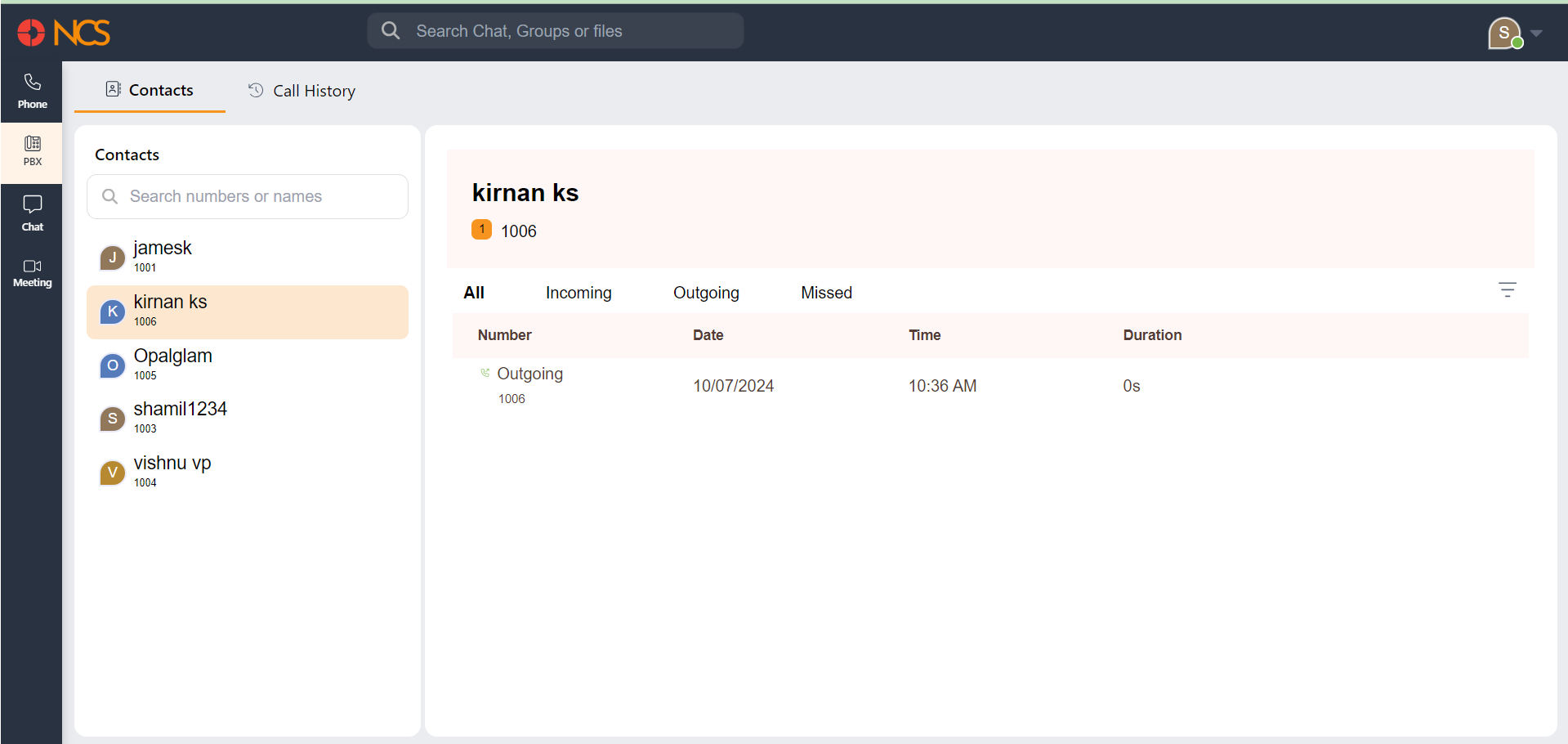
View Contacts The left panel displays a list of your contacts. Scroll through the list or use the search bar to find specific contacts by name or number.
Select a Contact Click on a contact to view their details and call history on the right panel.
Search Contacts Use the search bar at the top of the contacts list to find specific contacts quickly by entering their name or number.
Contact Detail Page
It provides a comprehensive view of all communication history with a specific contact. This includes incoming, outgoing, and missed calls, along with their respective details.
From the contacts list on the left panel, click on the contact whose details you wish to view. This will open the contact detail page.
The top section displays the contact's name and extension number. Below the contact information, there are tabs to filter call history
- All: Shows all calls (incoming, outgoing, and missed).
- Incoming: Displays only incoming calls.
- Outgoing: Displays only outgoing calls.
- Missed: Displays only missed calls.
On the right side of the call history list, click the filter icon to open the date filter options.
From: Select the start date for the filter range.
To: Select the end date for the filter range.
Click the Submit button to apply the date filter and view calls within the specified date range.
The main section displays a list of calls based on the selected filter. Each call entry includes:
Number: The type of call (incoming, outgoing, missed) and the contact's number.
- Date: The date when the call occurred.
- Time: The time when the call occurred.
- Duration: The length of the call.
When hovering over each call entry, there is a phone icon. Clicking this icon initiates a call back to the contact.
Call History
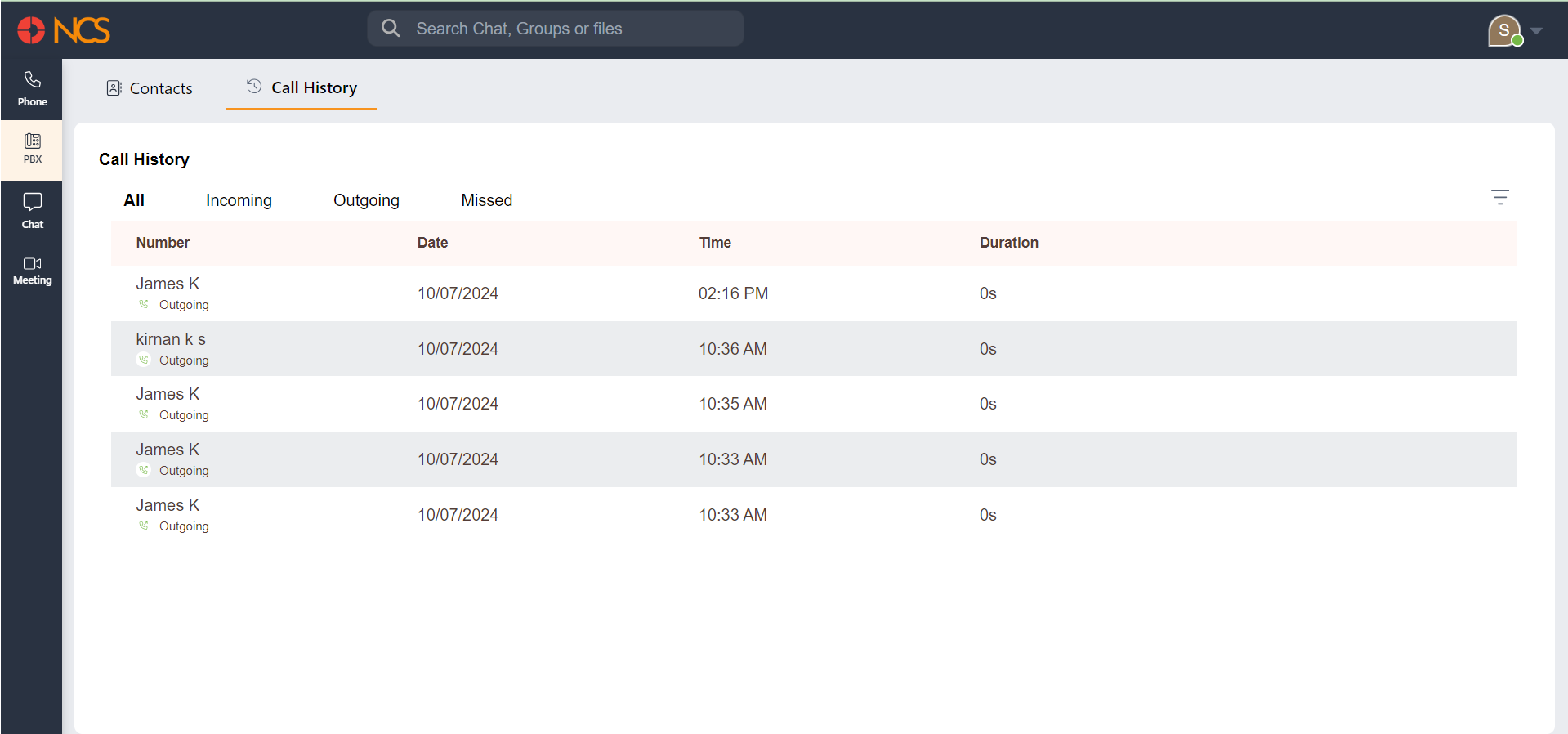
Click on the Call History tab at the top of the PBX system interface to view the call history. The top section contains tabs to filter call history:
- All: Shows all calls (incoming, outgoing, and missed).
- Incoming: Displays only incoming calls.
- Outgoing: Displays only outgoing calls.
- Missed: Displays only missed calls.
On the right side of the call history list, click the filter icon to open the date filter options.
- From: Select the start date for the filter range.
- To: Select the end date for the filter range.
Click the Submit button to apply the date filter and view calls within the specified date range.
The main section displays a list of calls based on the selected filter. Each call entry includes
- Number: The type of call (incoming, outgoing, missed) and the contact's number.
- Date: The date when the call occurred.
- Time: The time when the call occurred.
- Duration: The length of the call.
Settings
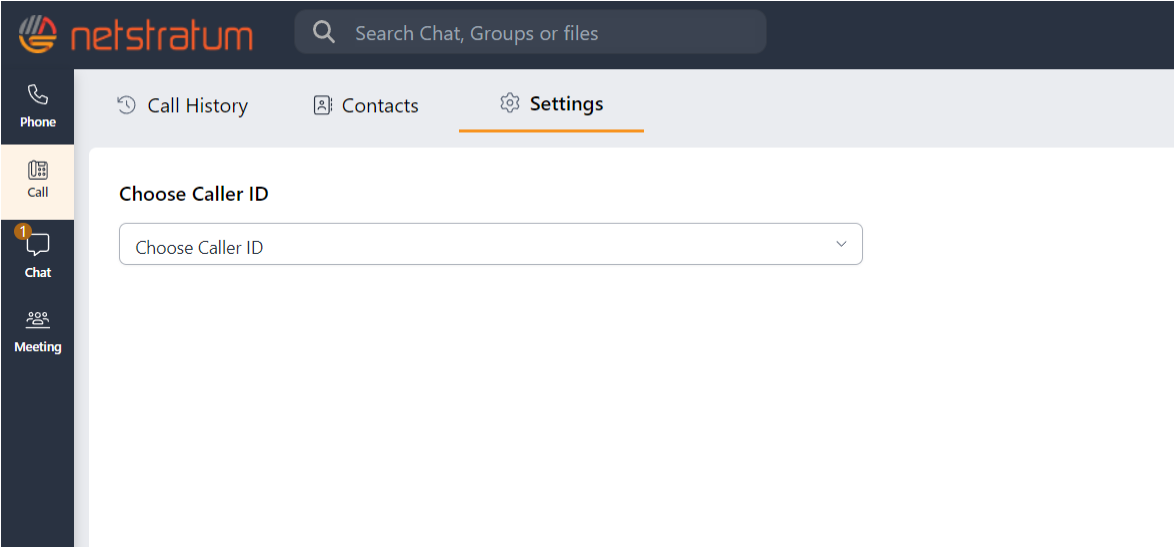
The Settings tab in the PBX section allows you to manage and customize your call-related preferences. This page is designed to give you control over how your PBX behaves, including selecting your Caller ID and configuring additional options that may be added in the future.
Currently, you can:
- Choose Caller ID:
Use the dropdown to select the Caller ID that will be displayed when you make outgoing calls. This ensures your calls appear with the appropriate identity linked to your account or organization.