Chat Window
Click on any chats from under Direct Messages or Groups to open the Chat Window. The Chat window has three main sections - the Chat Top Bar, the Chat View and the Message Input Box.
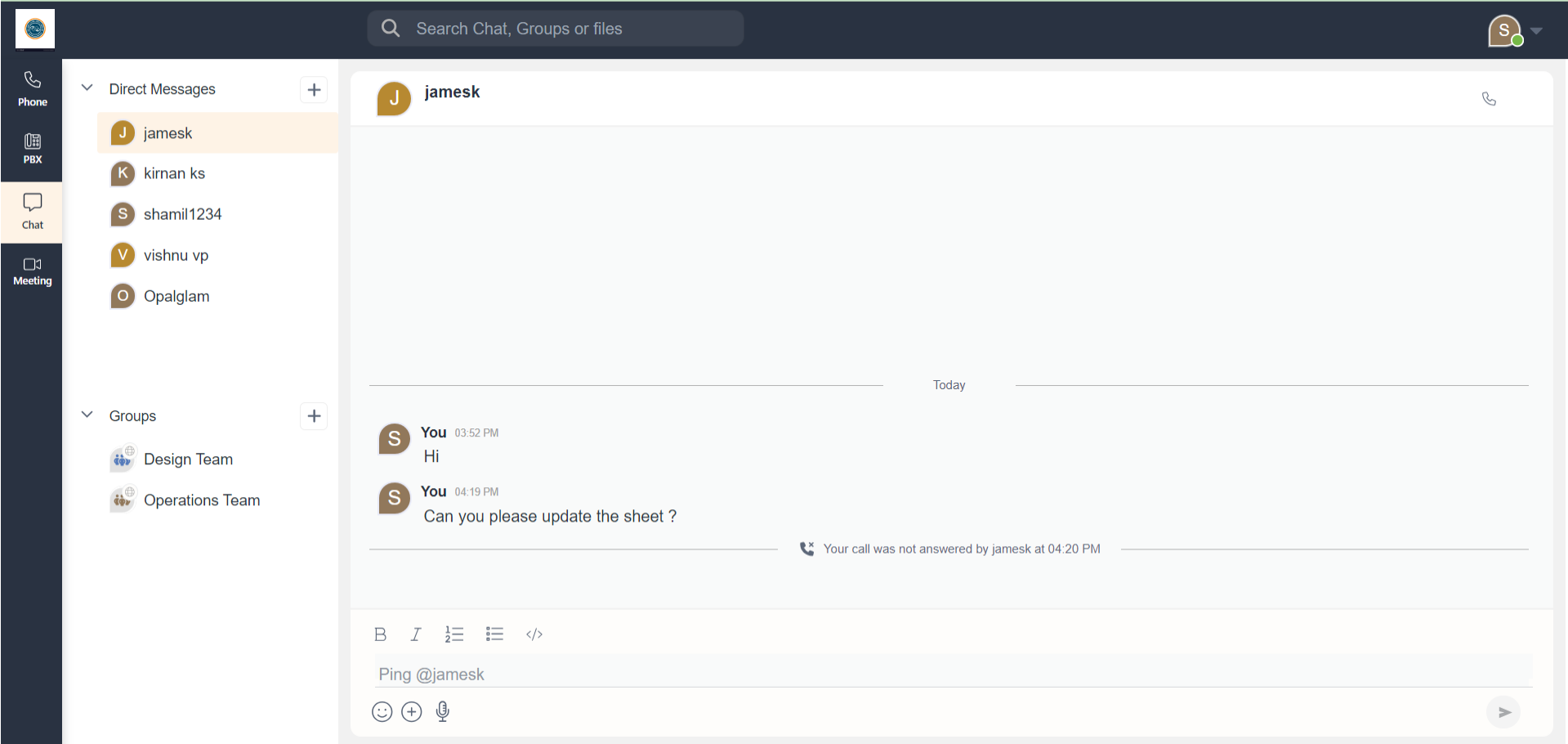
Chat Top Bar
The Chat Top Bar is a bar at the top of the chat window. Towards the left of the Chat Top Bar, you will see the Profile Name of the conversation. For Direct Messages, it will be either the person name or the group name. Beside the name is the respective Avatar for the Chat. Right below the Name, for Direct Messages, you can see the System Status and for Groups, you can see the Number of People in the Group. This section acts as a Profile Access. Click on the Profile Name to open the Profile page. Read more on Profile here, Profile
Towards the top right of the Chat Top Bar is the Call icon. Click on the Call button to initiate a call in the Chat. This will send notification to all members of the Chat. read more on Calls here Chat Call
Direct Messages
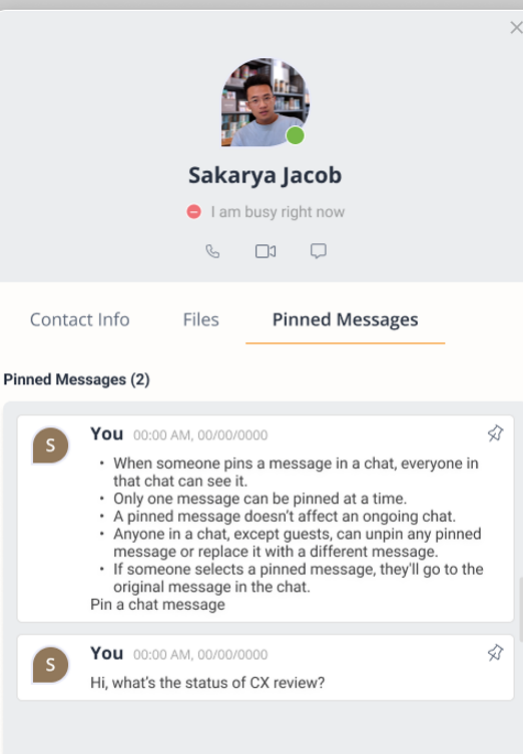
At the top of the modal, the Avatar, Name, and System / User Status will be displayed. The User Status will override the system status if there is one. Right below this information, some quick actions like Call and Message icons will be present.
The next section of the Profile page consists of three tabs - Contact Info, Files, and Pinned Messages.
Clicking on the Contact Info tab displays the person’s Official Email Address, Phone Number, and Local Time.
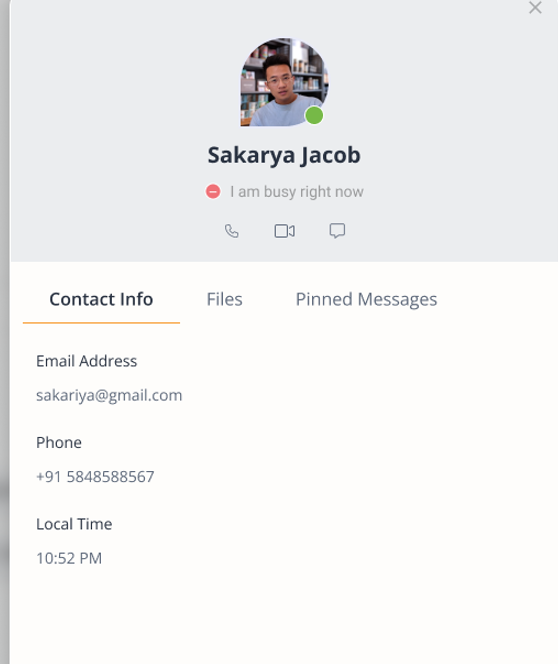
The Files tab lists all the files shared in that Chat. You can further filter them based on the type by clicking on the sub tabs - Documents, Files, and Media. Each of these tabs have a search bar and sort & filter options to further finetune your search for any specific file. The bottom of this section displays the total number of pages and which page you are in in the k/n format, where k being the page you are in and n being the total number of pages.
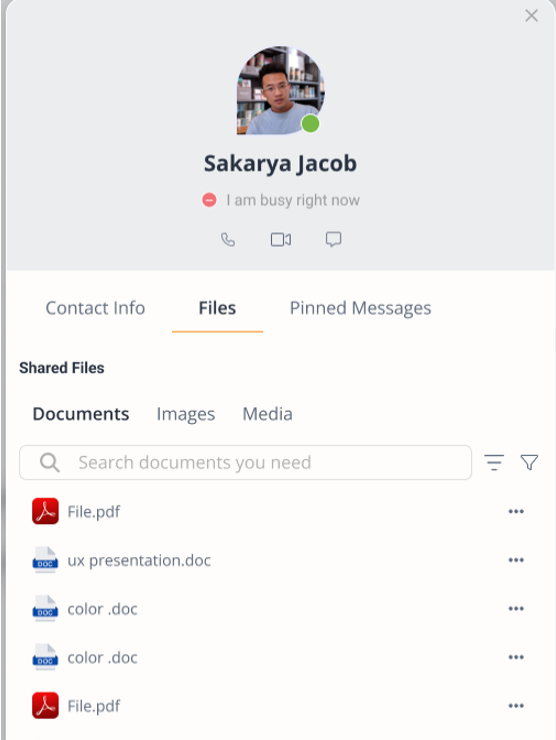
The Pinned Messages tab any messages you or people in that Chat has pinned will be listed with a scroll. You can unpin the messages by just clicking on the Unpin icon at the top right of the messages that you pinned. Clicking on any pinned message redirects you to that specific message..
Group Chats
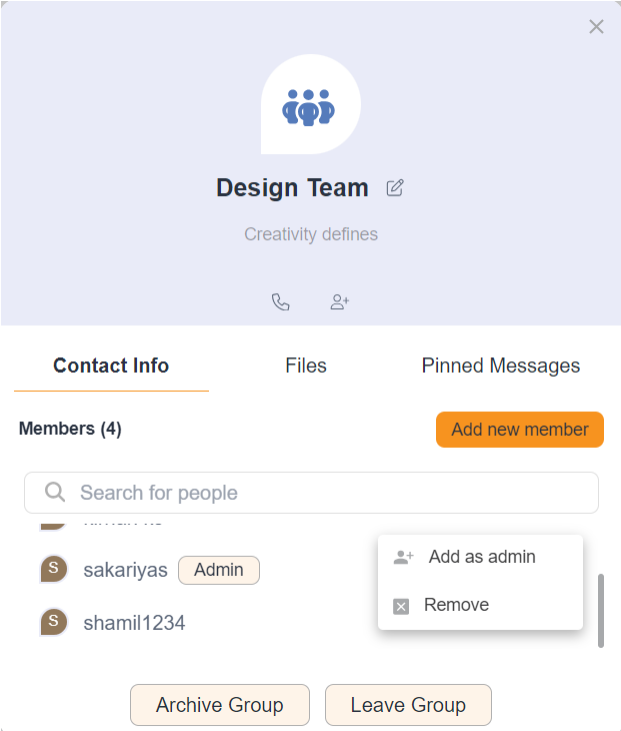
At the top of the modal, the Avatar, Group Name, and Group Description will be displayed, along with an Edit button. Right below this information, some quick actions like Call and Invite icons will be present.
Edit Group Name and Description
Click on the Edit button beside the Group Name in Profile modal to open the Editable field for Group Name and Group Description. Fill in the respective fields with desired names and descriptions using text and emojis. After making changes, click on the Update button to save the changes.
Add Member
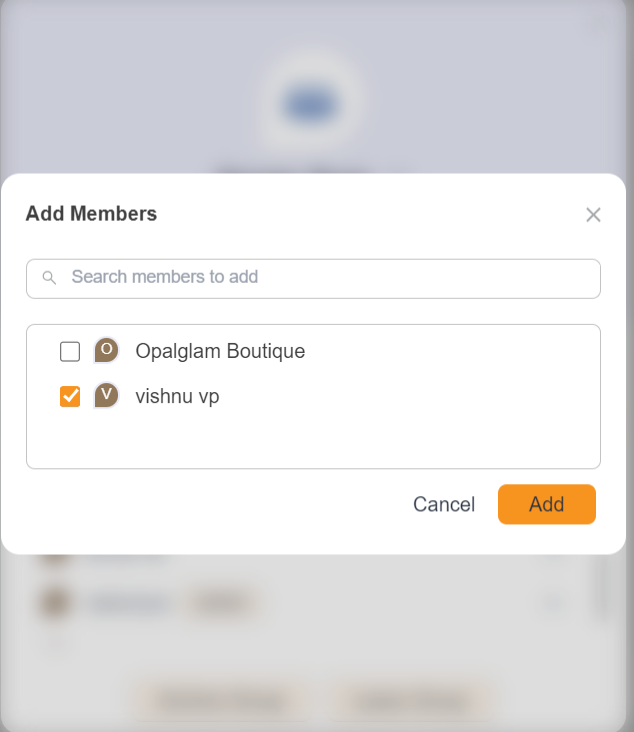
You can add new members to a group by clicking on the Add New Members button at the top right of Members tab in the Profile Modal.Click on this button to open a Add Member modal with a search bar. You can search for' names to add to the group. For example, if you search for "David" you will see all the Davids in your list and can select the one you prefer.Upon selecting, their names will be added to the search field as chips with a Close button. You click on the Close button to remove the selection. Click on the now active Add button to add the selected people as members to the group. If you decide not to add anyone, click the Cancel button.
At the top of the Members list, there is a search bar to find members' names. The Group Admin's name is listed first, followed by group members. Next to each member's name, there is a button for Admins users. Click on this button to display a menu with options - Add as Admin and Remove. Clicking Add as Admin makes that person an admin, while clicking Remove removes them from the group.
The Files tab lists all the files shared in that Chat. You can further filter them based on the type by clicking on the sub tabs - Documents, Files, and Media. Each of these tabs have a search bar and sort & filter options to further finetune your search for any specific file. The bottom of this section displays the total number of pages and which page you are in in the k/n format, where being the page you are in and n being the total number of pages.
The Pinned Messages tab lists any messages you or people in that Chat has pinned will be listed with a scroll. You can unpin the messages by just clicking on the Unpin icon at the top right of the messages that you pinned. Clicking on any pinned message redirects you to that specific message.
At the bottom of the modal, there are action buttons - Archive Group and Leave Group
Click on Leave Group to leave from the chat. You can join back in this group only by invitation or being added by the admin, in case of a private group.
Click on Delete Group to permanently remove the group and all its messages. You will not be able to access it as it is an irreversible action.